1. Get Computer Help From Anywhere
This one is known to most veteran Windows users. The Remote Assistance
feature allows you to send an invitation to your favorite computer
person. Then they can log on to your computer remotely, to help you
solve a problem.
It's safe, don't worry. Their ability to connect is temporary. You
can even decide whether they just see your desktop or can interact with
it.
All this time you've been relying on TeamViewer
or LogMeIn. If you do ask your favorite IT person for help, make sure
you take good care of them in return. You can turn on Remote Assistance
in Control Panel > System > Advanced System Settings > Remote.
2. All In One Calculator
You know there's a calculator app
in Windows. But did you know that it's really several calculators? It's
your basic calculator, but it's also scientific, programmer, and
statistics calculators. Seriously. And like any good multi-tool…wait,
there's more!
You can do unit conversion like inches to centimeters. You can figure
out how many days you've been alive with date calculation. It'd be a
bargain if we stopped there, but we won't!
Did you know that it can do things you thought only spreadsheets like Excel
could? How about mortgage and leasing calculation worksheets? Use it to
figure out how fuel efficient your car is - in miles per gallon AND
liters per 100 kilometers. Whatever a liter is, pfft.
3. Clean Bloatware and Fix Windows Quickly
Deployment Imaging Service and Management (DISM) is a very powerful utility. We've covered how you can use DISM to quickly get rid of bloat and crap ware in Windows 10, but it can do so much more.
You can use it to capture an image of a hard drive partition, maybe to back up your computer. You can even use it to repair your Windows, without the recovery disks.
Just look above at the help file on it. This may look like a foreign
language to you, but if you're willing to take the time to learn it,
you might surprise yourself. You might find you can use this tool for
things you never thought possible.
DISM is accessed by opening an elevated command prompt window (with Admin rights) and using the DISM command.
4. Move Everything From Your Old to New Computer
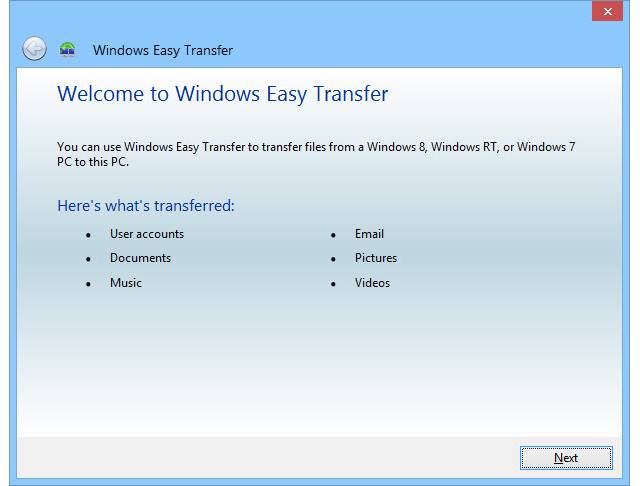
When you get a new computer, the most tedious job is transferring all your files and Windows settings. That's where Windows Easy Transfer makes your life, well, easier.
Easy Transfer will move all your files and folders from the Pictures,
Music, Documents, and Shared Documents folders. You can also select
files and folders from other locations. It can transfer your e-mail
settings, messages and contacts. It will even preserve all your special
settings that make Windows just the way you like it.
On Windows 7 or 8.1, just click on your Start button and search for "easy transfer". Windows 10 users can use features available through the native Settings app and OneDrive to sync data or use third party tools to move Windows settings and apps or backup and sync files.
5. Send and Receive Faxes Without a Fax Machine
Faxing may seem a little old fashioned to you. But faxes still have a place in this world, and the Windows Fax and Scan
utility can help. It can let you use your computer to send and receive
faxes. You can also use it to print, e-mail, and save and organize
faxes.
Now keep in mind, you do need a fax modem for this to work. You might
have to break into a museum to get one, though. It's odd, but it is
there, and you might need it, but not know about it.
Windows Fax and Scan can be found by going to your Start menu and searching on "fax and scan"; even in Windows 10!
6. Test Drive Other Operating Systems
You can create a virtual computer, or virtual machine
as they're called, on your Windows computer. On that virtual machine
you can install different operating systems. In Windows, the tool for
this is Hyper-V.
Want to test drive Linux? Hyper-V. Want to try Windows 10? Hyper-V. Everything that happens on your virtual machine never affects your physical computer. It's your computer playground.
To install Hyper-V go to Control Panel > Programs and Features > Turn Windows features on or off. You'll find it in there.
7. Set Up a Web Server
All the web sites you know and love reside on web servers. Did you know Windows comes with one built in. It's called Internet Information Services (IIS).
Now, you might not want to use your home computer to host your
business' website, but if you want to play around, learn some web
programming, and see what makes web sites and servers tick, IIS is a
powerful, and free, tool in Windows.
IIS also comes with a File Transfer Protocol (FTP) server. If you don't know what an FTP server does, it can be used as a place to host pretty much any kind of file. Then, using an FTP client
you can connect to your FTP server from any where in the world and down
load your files. You could even use it to host files for family near
and far. Think of hosting family photo albums or videos, maybe useful
documents or programs.
IIS is also installed from Control Panel > Programs and Features > Turn Windows features on or off.
8. Make That Weird Character
Ever been typing an e-mail or a school report
and you need to make a character that isn't on the keyboard? Maybe you
want to make the copyright sign, or a subscript 1 on a footnote. Maybe
you need some astrological or electrical symbols. How about a dipthong
or an umlaut? What are those, even? Who knows?
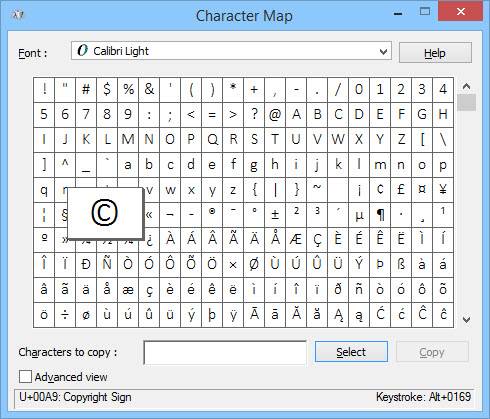
Well you do, and Windows Character Map is a good way to get them. To open it up, go to your Start menu and search for charmap or character map.
Once it's open, scroll through it, change to many other fonts even.
Then just copy and paste. Or look at the bottom of the window for the
Alt code.
Each character has it's own little code. Hold down your Alt key, type
the plus sign on your number pad and then the code for the character.
When you release the Alt key, your special character will appear. This
works in most Windows-based programs.
9. Get Better Monitor Color
It's not professional photographer grade monitor calibration, yet the Windows Calibrate Display Color utility can make your viewing experience much more pleasurable.
Maybe you're a gamer and your character doesn't look right. Maybe you
like to edit family photos, but they don't look the same on the screen
as your originals. Maybe you just want to have great color represented
on your display.
The Calibrate Display Color utility can help with that. And you already own it. It's in your Control Panel under Display and you can find it when searching from the Start menu.
10. Talk to and Listen to Windows
If you read our article on making Windows easier to use if nearsighted or farsighted, you know that you can make Windows talk to you.
Windows Narrator will read to you what's on your
screen. Using keyboard shortcuts, you can make Narrator read the entire
selected window, an entire document, or even just a page, paragraph,
line, or word.
This can be quite helpful for people with visual impairments. But you
might use it if you're suffering from Computer Vision Syndrome, or just
sick of looking at a screen. To start Narrator, open your Start menu,
search for narrator and open the correct result.
Of course, if Windows can talk to you, it should be able to listen, too. Windows 10 users will know all about Cortana, but Windows has been able to hear you for a while now. Windows Speech Recognition goes way back to the Vista days.
It might not speak back to you like Cortana, but you can use Windows
Speech Recognition to do just about anything. Setting it up is easy and
takes less than a minute. The commands are simple, make sense, and are
easy to remember. You can open and close programs, dictate letters, and
find and open files. That's just a very small look into what Windows Speech Recognition can do. Open your Start menu and search for speech recognition (not available on Windows 10).
11. Hands Off!
This handy feature was buried in the Food and Drink app back in Windows 8.1. It was there for a good reason, though.
Let's say you had your favorite recipe open on your laptop or tablet,
making a feast. You needed to go to the next page but your hands
were covered in butter or dough. Oh no! Don't worry, just wave your hand in front of the webcam and Windows would turn the page for you.
That's a good thing. The bad thing is that the Food and Drink app was discontinued. But you can easily get an app like NPointer, so you can control your computer like it's a Jedi mind trick.
ReadyBoost was added back in Vista, and was a bit of
a flop. Some folks had a hard time getting it working, but most
people didn't even know it existed. It has been refined and improved
over time and now may be of great use to you. Simply, it allows you to use external memory, like a USB flash drive or an SD card, as a sort of RAM.
As of Windows 10, it can use ALL the flash drives that are connected
to your computer. So, if your computer only has 8 GB of RAM, you could
pop in an 8 GB USB flash drive and double your RAM.
In Windows Explorer, right-click on the USB drive you'd like to use, select Properties, then click on the ReadyBoost tab and follow the instructions. Nice trick, Windows.
13. Project a Really Long Distance
Network Projection is a feature that allows you to
connect to a projector over your network. Provided, of course, that your
projector also connects to the network. It might not be something that
you'll use with your projector at home, but this little trick might make you the star of the next board meeting.
Instead of having to plug a video cable into the projector and have
it dangling down to your laptop, just plug in to the network, connect
via Network Projection and be a presentation pro.
Unfortunately, this feature appears to have been removed for Windows
10, but is still available in Windows 7, 8, and 8.1. From your Start
menu, search for Connect to a network projector to find it.
14. Make Your PC a Video Star
New for Windows 10 is the Game DVR (Digital Video Recorder) utility. This one does require you to have the Xbox app for Windows 10
installed. Intended to be used by gamers to make video clips of their
exploits, there's no reason you can't use it to record whatever you
want.
Press the Windows key + G to launch the Game DVR. It will ask you if this is your gaming machine. Click yes,
we won't tell on you. Then you'll see the controls to start recording.
It'll even allow you to do some minor editing, like trimming the video
length.
15. Show Your IT Person What You Were Doing
This is the one that even good PC techs might not know about. Using Windows Steps Recorder, you can provide a detailed list of everything you did right up to, and including, the point where your problem began.
The Steps Recorder will pack the recorded steps up in a nice little
zip file that you can email to your favorite tech. They can open it and
try to pinpoint exactly where things went wrong. That will help them
give you the best solution that they can.
To start Step Recorder, search for steps recorder from your Start menu. It should be the first result.
Note that it will NOT record your passwords. So if
you have to open a file with a password, you can safely record the
steps. Your tech will not be able to get your password from Windows
Steps Recorder. This trusty tool could really make your life easier,
especially if you're the de facto IT person for the office or family.






 Posts
Posts


