Saturday, October 30, 2010

Restore the Windows Boot Loader After an Ubuntu Update

Will your computer not boot into Windows after installing an update on your dual-boot or Wubi Ubuntu install?  Here’s how you can get your Windows boot loader back so you can easily get back to work in either OS.
We’ve mentioned before how Wubi is a great way to run Ubuntu on your Windows PC or netbook, and in general it works great.  However, sometimes your system may receive updates to GRUB, and if you choose the wrong option, the next time you reboot your computer you may find that it think there’s only Ubuntu and no Windows installed on your computer.
sshot-2010-10-29-1-10-17-28
Or, perhaps, even more ominously, you boot your computer to see that it thinks it has no operating system.
sshot-2010-10-29-1-10-14-10
Often, there’s no need to panic.  If you recently received an Ubuntu update, or somehow managed to mess up or remove your boot loader, it’s quick and easy to get it back using familiar Windows tools.  Here’s how.

Reinstall Your Windows Boot Loader From the Windows DVD

To get back into Windows, you’ll need to reinstall your Windows boot loader.  Thankfully this isn’t as difficult or time consuming as reinstalling Windows, but it will require your Windows DVD.  Boot your computer from the DVD, and if it doesn’t automatically offer to let you boot from the disk, you may need to change your boot settings in the BIOS.  You can usually access by pressing the F2, F10, or Delete key on the initial boot screen, depending on your computer.
image
Save the changes and reboot your computer from the Windows DVD.  After a few moments, you should see the install setup screen.  Select your preferred language, then click Next.
image
Your install disk is designed to install Windows on your computer, but also contains tools to help repair your existing Windows install.  On the bottom left of the Install window, click the Repair your computer link to get started repairing your current install of Windows.
sshot-2010-10-29-1-11-03-18
System Recovery will automatically start scanning to see if there’s an existing Windows install with something it can easily fix automatically.  You may have to wait a few minutes while it scans your computer.
sshot-2010-10-29-1-11-03-34
If your only problem is the boot loader, often it will automatically detect the problem and offer to fix it.  If so, simply click Repair and restart, and your computer should be booted back into Windows as normal within minutes.
sshot-2010-10-29-1-11-06-13

Reinstall Your Boot Loader Manually From the Windows DVD

Alternately, if it doesn’t automatically detect anything to fix, you’ll have to choose your own recovery options.  Click the bullet option on the top then click Next to use recovery tools to fix Windows.
sshot-2010-10-29-1-11-16-48
Now, select Command Prompt from the available recovery tools.
sshot-2010-10-29-1-11-07-06
In the command prompt window, enter the following to repair your boot loader:
bootrec /rebuildbcd
After a few moments, it should detect your Windows installation and ask if you want to add it to the boot loader.  Enter Y to add it, then exit the command prompt and reboot your computer when you’re finished.
sshot-2010-10-29-1-11-08-46
Moments later, you should see your standard Windows login screen as normal, and all of your files and programs should be fine and ready to use.
sshot-2010-10-29-1-11-10-19
As you may notice, the option to boot into Ubuntu will no longer show up in your boot menu, and your computer will act like you only have Windows installed.  To get your Wubi Ubuntu or full Ubuntu install accessable from the boot loader again, you’ll need to restore it as well.  The easiest way is to Add Wubi Back to the Bootloader With EasyBCD.  Once you’ve done that, you should be back in business, ready to use Windows or Ubuntu as you need. Source: http://www.howtogeek.com

Tuesday, October 26, 2010

Download Rapidshare and Megaupload files from the Linux Terminal

To download any Rapidshare and Megaupload file from the Linux terminal, you will need to install an application called 'plowshare'. You can get it from HERE.

Before using plowshare, you should install these packages first:

curl
recode
imagemagick
tesseract-ocr
rhino
aview
PerlMagick

Since I'm using Ubuntu, I downloaded and installed those packages using this one-liner:

$ sudo apt-get install curl recode imagemagick tesseract-ocr-eng rhino aview perlmagick

Now that everything is set, you could start downloading Rapidshare and Megaupload files using the Linux terminal. Here are some usage examples:

Downloading a file from Rapidshare:

$ plowdown http://www.rapidshare.com/files/12345678/Elephants_Dream.rar

Downloading a file from Megaupload (with free membership account):

$ plowdown -a myusername:mypassword http://www.megaupload.com/?d=12345678

Downloading a password-protected file from Megaupload:

$ plowdown -p somepassword http://www.megaupload.com/?d=swf1g53x

For other usage examples, you may go HERE.

It is worth noting that plowshare also supports other file-sharing services such as 2Shared, 4Shared, ZShare, Badongo, Divshare.com, Depositfiles, Mediafire, Netload.in, Storage.to, Uploaded.to, Uploading.com, Sendspace, and Usershare. Source: http://www.junauza.com

Usage examples

All four scripts share the same verbose options: -v0 (alias: -q), -v1 (errors only), -v2 (infos message; default), -v3 (show all messages).

Download

  • Download a file from Rapidshare:
$ plowdown http://www.rapidshare.com/files/86545320/Tux-Trainer_25-01-2008.rar
  • Download a list of links (one link per line):
$ plowdown file_with_links.txt
  • Download a list of links (one link per line) commenting out (with #) those successfully downloaded:
$ plowdown -m file_with_links.txt
  • Limit the download rate (you can use curl rates: K=Kbps, M=Mbps, G=Gbps):
$ plowdown -r 50K http://www.rapidshare.com/files/86545320/Tux-Trainer_25-01-2008.rar
  • Download a file from Megaupload using a free membership account (note ':' is used to separate user from password):
$ plowdown -a myuser:mypassword http://www.megaupload.com/?d=132348234
  • Download a password-protected file from Megaupload:
$ plowdown -p somepassword http://www.megaupload.com/?d=ieo1g52v
  • Use a different web retriever for the last file download. File URL, file name and cookies are available through interpolations. Let's say you want to use wget:
$ plowdown --run-download='wget -O "%filename" --load-cookies "%cookies" "%url"' http://www.2shared.com/file/4446939/c9fd70d6/Test.html
  • Filter alive links in a text file
$ plowdown -c file_with_links.txt > file_with_active_links.txt

Upload

  • Upload a file to the Rapidshare collector zone
$ plowup --auth-freezone=myuser:mypassword /path/myfile.txt rapidshare
  • Upload a file to Rapidshare anonymously changing uploaded file name:
$ plowup /path/myfile.txt rapidshare:anothername.txt
  • Upload a file to Megaupload with a free membership account:
$ plowup -a myuser:mypassword -d "My description" /path/myfile.txt megaupload
  • Upload a file to Megaupload with a premium account and multifetch upload:
$ plowup -a myuser:mypassword -d "My description" --multifetch http://www.somewherefarbeyond.com/somefile megaupload
  • Upload a bunch of files (anonymously to 2shared):
$ plowup /path/myphotos/* 2shared
Notice that only files will be sent, subdirectories will be ignored.
Be aware that curl is not capable of uploading files containing a comma (,) in their name, so make sure to rename them before using plowup.

Delete

  • Delete a file from megaupload (a premium account may be required):
$ plowdel -a myuser:mypassword http://www.megaupload.com/?d=132348234

List

  • List links contained in a shared-folder link and download them all safely:
$ plowlist http://www.mediafire.com/?sharekey=79ac821ea0110 > links.txt
$ plowdown -m links.txt

Linux dictionary tools

The dictionary is a tool that any writer or student should have on their computer. And Linux users are not immune from this need. But if you look through the possibilities of Linux dictionary tools you find quite a large amount available. Which of these tools are the best or easiest to use?
I have found, outside of using an application’s built-in spell checking, two particular tools that I prefer. These tools are GoldenDict and Dict. The former is a splendid GUI tool, whereas the latter is a lightning-quick command line tool. Let’s see which of these tools suits your needs best.
GoldenDict
GoldenDict is a feature-rich graphical dictionary program that allows the user to take advantage of multiple local dictionaries as well various on-line dictionaries. It’s easy to use and actually works in conjunction with other applications.
To install GoldenDict just do the following:
  1. Open up your Add/Remove Software Utility.
  2. Search for “goldendict” (No quotes).
  3. Mark GoldenDict for installation.
  4. Click Apply to install.
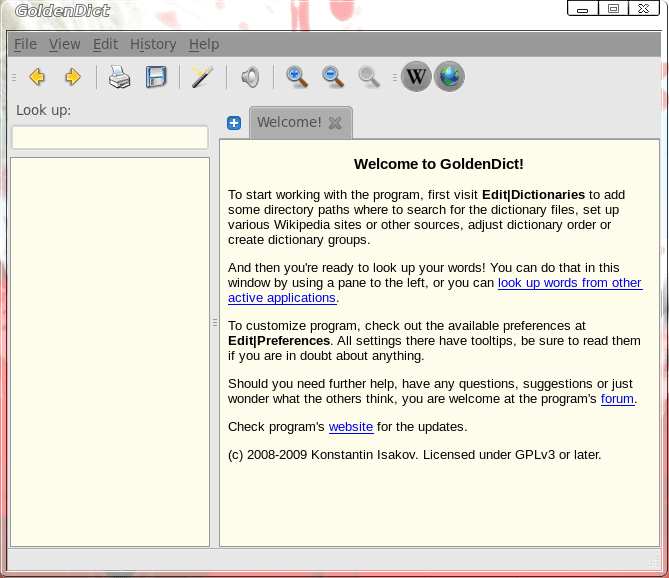
Figure 1
Once installed, you will find GoldenDict in the Applications > Office menu.
When you fire up GoldenDict you will the main window where you can take care of all of your lookups (see Figure 1). The usage is fairly straight-forward. You enter your word in the “Look up” text area and hit Enter. The results will appear as the disambiguation in the left pane and the actual definition in the right pane.
Now…let’s say you want to extend GoldenDict out to your other applications. If you click on Edit > Preferences and then click on the Scan Popup tab you can enable GoldenDict to work on any text you highlight in any application. I will warn you…this can get in the way of every day use. To that end I always enable this feature but enable it along with the “Only show popup when all selected keys are kept pressed”. With this feature you can configure a key (either Alt, Ctrl, Shift, or Meta) that must be pressed along with the word selection. When this combination is done a popup will appear definining the word.
Dict
Now let’s take a look at a much simpler tool – dict. Dict is a command line only tool that allows you to search online dictionaries (or local dictionaries if you have them installed) for word definitions. Installing dict is simple:
  1. Open up a terminal window.
  2. Issue the command sudo apt-get install dict (or a suitable command for your distribution).
  3. Accept the dependencies.
  4. Wait until the installation is complete.
When you have dict installed, the usage is simple:
dict -h SERVER WORD
Where SERVER is the server you want to use and WORD is the word you want to look up. Normally you could just issue dict WORD but currently the default servers for dict are all not responding. So in order to get around that you need to define a server to use. One server that is working is dict.tu-chemnitz.de. To use this server you would issue the command:
dict -h dict.tu-chemnitz.de WORD
Where WORD is the word you want to look up. You would then be rewarded with the definition of the word in question. Source: ghacks.net

Lingoes, Multi-Language Dictionary And Text Translation Software

Lingoes is a free dictionary and text translation software for the Windows operating system. The application offers an incredible feature set for a free program, more about that later in the review.
The program ships with an English dictionary and integration of multiple online translation services. Free dictionary files for additional languages are offered at the developer website. They need to be downloaded, unpacked and then loaded into the application.
lingoes dictionary
All dictionaries are accessible at the same time. Words or phrases can be looked up by entering them in the search form on top of the program. Lingoes will automatically display the best match, and adjacent words in its interface.
The word definitions and phonetic form are displayed on the results page, along with the dictionary it has been found in. Phrases can also be picked with the mouse directly in the sidebar. Lingoes tries to automatically match the phrase to one of the installed dictionaries. It is possible to select a specific dictionary instead if the user wants to look up a phrase in one of the available dictionaries. Otherwise, the first matching dictionary will be used for the definition.
Dictionaries are added in the dictionary options menu. Here it is possible to install or uninstall dictionaries
dictionaries
A right-click on a word or phrase opens a context menu with several options, including possibilities to let the program pronounce the selected text, and search or print it.
A click on text translation in the main menu opens a small text input form in the program. Text entered into the form can be translated using one out of 13 different translation services ranging from Google Translate to Baidu Translation and Yahoo Babelfish.
The translated text is directly displayed in the program interface.
text translation
Text translation and dictionary look ups are the two main features of Lingoes. Hotkeys are available to use the program’s functionality on a system wide level.
dictionary look up translation
This feature worked nicely in all tested programs, from Firefox over Thunderbird to Microsoft Office. The program hotkeys are defined in the program configuration. Here are the most important standard hotkeys:
  • Alt-P: Pronounce
  • Ctrl-F12: Speak selected text
  • Ctrl-Alt-F12: Stop speaking
  • Alt-G: Enable / Disable capture word on screen
  • Alt-Z: Enable / Disable translate selected text
The speech functionality uses build in text to speech capabilities of the operating system, with an option to download the free Natural Voice engine pack from the developer website.
Lingoes is an excellent program for users who need dictionary and / or text translation functionality on a regular basis. The program is available as a portable version or installer, and can be extended to work with more than 80 different languages. Source: http://www.ghacks.net

Sunday, October 3, 2010

How To Remove Plugins From Firefox

One of the most annoying things in Firefox is that third party software can install add-ons and plugins without the user’s consent. That’s a big no-no from a security standpoint obviously, and it remains a mystery why the developers have never bothered to fix that flaw by adding a confirmation dialog whenever a new plugin or add-on tries to install itself automatically.
We leave it at that for the moment. Now, Firefox users end up with plugins installed that they have not added to the browser. On our test system those were for instance: (name, description)
  • Google Update: Google Update
  • Microsoft Office 2010: Office Authorization plug-in for NPAPI browsers
  • Microsoft Office 2010: The plug-in allows you to open and edit files using Microsoft Office applications
  • Quicktime Plug-In: The Quicktime Plugin allows you to view a wide variety of multimedia content in Web pages. For more information, visit the QuickTime Web site.
  • Silverlight Plug-In
  • Windows Live Photo Gallery: NPWLPG
Other Firefox users will probably find other plugins there that have been installed automatically.
firefox plug-ins
Plugins can be disabled in the Plugins manager, but not uninstalled or removed completely from the web browser. Entering about:plugins in the Firefox address bar will display additional information about each installed plugin. Users who visit the screen for the first time may want to type in about:config first, to change the preference plugin.expose_full_path to true. This displays the path to the plugin in the about:plugins dialog.
Displaying the path to the plugin does one thing: It enables the user to locate the plugin source on the hard drive. Just open the folder on the hard drive afterwards, backup the plugin file and delete it afterwards to remove it completely from Firefox. Here is how it is done for the two Microsoft Office 2010 plugins.
microsoft office plugins
Locate the plugin paths in about:plugins and open the folders on the hard drive. In the case of Microsoft Office 2010, both plugins are located in the C:\Program Files (x86)\Microsoft Office\Office14\ folder on the hard drive (Please note, that the location on 32-bit systems is C:\Program Files\Microsoft Office\Office14\ instead).
The name of the first plugin is NPAUTHZ.DLL, the one of the second NPSPWRAP.DLL. We highly suggest to backup plugins before deleting them from the system, just in case they need to be restored at a later time. Plugins can be deleted while the browser is running, and doing so will immediately remove most of them from the about:plugins information window and the plugins manager in Tools > Add-ons. Some plugins may require a browser restart before they are completely removed from the browser.
To remove all plugins that are not used or needed simply go through the listing of plugins in about:plugins, locate the paths of those plugins on the hard drive, and backup and delete the plugin files.
There is also the possibility that some plugins have added themselves in the Windows Registry, Google Update comes to mind for instance. You can take a look at this guide How To Stop Automatic Plugin Installations In Firefox for an in depth walkthrough, or locate HKLM\Software\MozillaPlugins or HKLU\Software\MozillaPlugins in the Windows Registry to see if plugins have been added there as well. Again, export the Registry key first before deleting it, for the ability to restore the setting at a later time.
Source: http://www.ghacks.net

Friday, October 1, 2010

Autokey: Make Your Own Keyboard Shortcuts In Linux

Few days ago, we discussed the usefulness of Spark and how it enables you to create custom shortcut keys in Mac. Alternatively, in Windows, we can use the popular AutoHotKey to create custom shortcuts. So what about Linux? Autokey is probably the best answer.
AutoKey is a desktop automation utility for Linux and X11. It allows you to create scripts and assign hotkeys to these scripts, allowing you to execute them on demand in whatever program you are using.

Compatibility with various distro and keyboard layout

Personally I did not test it on all the Linux distro and all the different keyboard layout. However, according to the developer of Autokey:
The core part of AutoKey is sending and receiving keyboard events via the X server. It supports multiple X interfaces and should therefore be compatible with virtually any version of Linux running an X server. Full unicode support is provided and it should in theory work with any keyboard layout.
Theoretically, it should work for all Linux distros and keyboard layout.

Installation

(the following installation instruction is based on Ubuntu)
Open a terminal and type:
1sudo add-apt-repository ppa:cdekter/ppa
2sudo apt-get update
For Gnome user:
1sudo apt-get install autokey-gtk
For KDE users:
1sudo apt-get install autokey-qt

Usage

Go to Applications -> Accessories -> Autokey.
autokey-main-interface
You will see on the left pane two folders named My Phrases and Sample Scripts. The My Phrases folder is binded to the hotkey “Ctrl + F7“.
To get a feel of the capability of Autokey, open a text editor and press Ctrl + F7, you should see the context menu with Address option. When you select the Home address field, you should see the address pasted to the text editor.
autokey-test-example

Usage: creating your own hotkey

To create your own hotkey, go to File -> Create -> New Top Level Folder.
autokey-new-toplevel-folder
The Top Level Folder is the container for all your phrases and scripts. You can assign a hotkey to it and call it up in any applications. To assign a hotkey, simply highlight the TopLevel Folder entry and click the Set button beside the Hotkey option. You can then choose the modifier key (Ctrl, Shift, Alt or Super) and the shortcut key.
autokey-set-hotkey
After creating the top level folder, the next thing is to create a phrase or a script.
Phrase
The Phrase is a snippet of text that you use frequently. With a quick press of the shortcut key, you can quickly insert the phrase to the document that you are working at.
Go to File -> Create -> New Phrase. Enter the phrase content in the big text area and assign a shortcut key in the Hotkey option below.
Other than assigning hotkey, you can also use a abbreviation for the phrase. For example, I have set the abbreviation “mte” to the phrase “http://maketecheasier.com”. Now I just need to type “MTE” and it will automatically be replaced with the full URL.
autokey-new-phrase
Scripts
For those who have knowledge of scripting, you can add your script, assign a hotkey and get it to run anywhere else. For those who know nuts about scripting, the “Record Marco” function can help you to record simple keyboard events.
autokey-new-script

Conclusion

For those who spend a lot of time on their keyboard, Autokey is a great tool to help you increase your productivity. Source: http://maketecheasier.com

Tuesday, September 28, 2010

Set up Samba for file-sharing

Samba, Apache, and MySQL are probably the biggest open source projects found on Linux (aside from the Linux kernel itself, of course). All three have really elevated Linux for use in home networks and corporate environments.
With them, anyone can have a file and print server, a Web server, or a database. All three come with pretty much every Linux distribution you can find.
The most ubiquitous of the three is probably Samba, because it and the functionality it provides is found in every operating system. Linux, OS X, the BSDs and others use Samba. It is directly compatible with Windows because it uses the Windows file and print sharing protocols to allow for sharing Windows file systems on Linux and vice versa.
Samba allows for a lot of configuration, and there are many options to use — primarily relating to authentication. When Samba 4 finally lands, it will be an incredible release with Active Directory support and being able to act as an Active Directory server, with internal LDAP and Kerberos servers to fully flesh out what is necessary for full integration with Windows networks. Until then, you can still hack Samba up to do a lot of these things, and it works fantastic as a client in Windows networks. You can make Samba work with Active Directory, with LDAP, and with local passwords.
Most people will just want a stand-alone Samba server somewhere on their network and that is the easiest to set up. To begin with, you need Samba installed on your system. This can be done by installing the “samba” or “samba3″ (on some distributions) package, either using yum or apt-get or whatever mechanism your distribution uses to install packages. Once Samba is installed, edit the /etc/samba/smb.conf file. If you’re using Red Hat Enterprise Linux or Fedora, you will need to make further changes if you have SELinux support enabled; the comments in smb.conf will help with the additional steps.
A very basic smb.conf file will look like this:
 [global]
    workgroup = MYGROUP
    server string = Samba Server Version %v
    log file = /var/log/samba/log.%m
    max log size = 50
    security = user
    passdb = tdbsam
[homes]
    comment = Home Directories
    browseable =no
    writable = yes
This is an absolutely basic configuration file. If you already have a workgroup defined, change the “workgroup” value to whatever you have already defined for the network. The rest can remain as-is. This will allow you the ability to connect to the server and mount your home directory on the server from any other machine on the network.
The next step is to create the local passwords. Because Samba does not use the authentication credentials of the system (i.e., via PAM), you need to add the user to the Samba user database:
# smbpasswd -a user
Provide the password for the user in question. Also note that this user must also exist on the system, so if this is a new user you must use useradd to create the user and passwd to set their password. If the user already exists on the server, there is no need to do anything more than set their Samba password.
Once this is all complete, start the Samba server (or restart it):
# service smb start
Now, from another system, you can use smbclient to list available shares:
% smbclient -L \\server.myhost.com
Password:
Domain=[CERBERUS] OS=[Unix] Server=[Samba 3.5.4-62.fc13]
       Sharename       Type      Comment
       ---------       ----      -------
       IPC$            IPC       IPC Service (Samba Server Version 3.5.4-62.fc13)
       user            Disk      Home Directories
Domain=[CERBERUS] OS=[Unix] Server=[Samba 3.5.4-62.fc13]
       Server               Comment
       ---------            -------
       Workgroup            Master
       ---------            -------
To mount the share, connect to \\server.myhost.com\user using the network browser in GNOME, the Finder in OS X, or Windows Explorer in Windows.
This is the easiest way to set up Samba for file sharing. Other mechanisms exist for sharing files on a LAN, such as NFS or SSHFS, but Samba is quick, easy to set up, and reliable. It is also cross-platform, making it easy to share files amongst various operating systems. Source: http://blogs.techrepublic.com

7 Linux sudo Command Tips and Tricks

Using sudo command, an user can execute root only commands.
In this article, let us review how to setup sudo environment along with some sudo command examples, tips, and tricks.

1. Set up sudo Environment in /etc/sudoers

You can provide sudo privilege to an individual user or a group by modifying /etc/sudoers.

sudo access to an user

To provide sudo access to an individual user, add the following line to the /etc/sudoers file.
sathiya    ALL=(ALL) ALL
In the above example:
  • sathiya : name of user to be allowed to use sudo
  • ALL : Allow sudo access from any terminal ( any machine ).
  • (ALL) : Allow sudo command to be executed as any user.
  • ALL : Allow all commands to be executed.

sudo access to a group

To provide sudo access to a group, add the following line to the /etc/sudoers file.
%programmers    ALL=(ALL) ALL
In the above example:
  • programmers : name of group to be allowed to use sudo. Group name should be preceded with percentage symbol.
  • ALL : Allow sudo access from any terminal ( any machine ).
  • (ALL) : Allow sudo command to be executed as any user.
  • ALL : Allow all commands to be executed.
Note: Ubuntu users are already familiar with sudo command, as you’ll use sudo apt-get install to install any package. On Ubuntu, sudo is already setup for your username as shown below. i.e All users who belong to admin group has access to execute root commands using sudo.
$ sudo cat /etc/sudoers
%admin ALL=(ALL) ALL

$ grep admin /etc/group
admin:x:115:sathiya

2. Executing a command as super user

Once the sudo access is provided to your account in /etc/sudoers, you can pass any root command as an argument to the sudo command. For example, mount can only be done by root. But, a normal user can do mount as shown below using sudo.
$ sudo mount /dev/sda3 /mnt
Note: If you are executing sudo for the first time in a shell it will ask for the password ( current user password ) by default.

3. Forgot to Use Sudo in Vim? No Worries. Save file Trick in vim with sudo

When you have opened a file that can be saved only by root user using vim (without using the sudo command), you can do the following.
For example, if you want to edit the file /etc/group that can only be saved by root user, you typically do the following. When you do a :w, no problem, it will work, as it was opened using sudo command.
$ sudo vim /etc/group
:w
What if you’ve forgot to give sudo when you’ve opened the /etc/group file as shown below? In this case, instead of coming out of the file (and loosing all your changes) and executing the vim command with sudo, you can do the following.
$ vim /etc/group

:w !sudo tee %
Note: “:w !sudo tee %” will save the file as root privilege, even if you didn’t use sudo command to open it.

4. Forgot to give sudo for root command? Do it again using !!

If you’ve forgot to give sudo for a command that requires root privilege, instead of typing the command with sudo again, you can simply do sudo !! as shown below.
$ head -n 4 /etc/sudoers
head: cannot open `/etc/sudoers' for reading: Permission denied

$ sudo !!
sudo head -n 4 /etc/sudoers
# /etc/sudoers
#
# This file MUST be edited with the 'visudo' command as root.
#

5. Get Root Shell Access using Sudo

To get a root shell from your user account, do the following.
$ sudo bash
Once you get the root shell, you can execute any root command without having to enter sudo in front of it every time.

6. Built in commands won’t work with Sudo – Command not found

sudo invokes an executable as the another user, so bash built in commands won’t work. It will give “sudo command not found” error as shown below.
For example, umask is a bash built-in command, which will not work when used along with sudo as shown below.
$ sudo umask
sudo: umask: command not found
Work-around: To use bash shell built-in command in sudo, first get the root shell, by doing ‘sudo bash’ and then execute the shell built in command.

7. View Unauthorized Sudo command executions from auth.log

When an user who doesn’t have sudo permission, tries to execute sudo command, they’ll get following error message.
$ sudo ls /
[sudo] password for test:
raj is not in the sudoers file.  This incident will be reported.
Anytime this happens, it will be logged in the /var/log/auth.log file for sysadmins to view any unauthorized sudo access.

Sep 25 18:41:35 sathiya sudo:   raj : user NOT in sudoers ; TTY=pts/4 ; PWD=/home/raj ; USER=root ; COMMAND=/bin/ls / 
Source: http://www.thegeekstuff.com