Tuesday, March 6, 2012

Changes in Microsoft translation API

This service announcement is to inform you that Microsoft Translator is deprecating the Bing AppID mechanism and replacing it with an access token which supports a more secure standards-based authentication (OAuth).  If you already made this switch, you may disregard this announcement.
To continue using the Microsoft Translator API service without interruptions, you must obtain an access token by April 1, 2012.
To use our service with an access token, please follow the steps below:
  1. Subscribe to the service through Windows Azure Marketplace.  Free service is still available at a volume usage limit of 2 million characters per month.
  2. Register your application on Marketplace (keep your Client ID and Client Secret confidential).
  3. Obtain an access token here.
Will I need to do anything else with my application when I migrate?
Yes, you will need to make slight modifications to your application by following the instructions here.
What happens if I don’t migrate from a Bing AppID to an access token?
When the Bing Translator AppID is deprecated, it will no longer be valid and you will not have access to the service.
What is the cost to subscribe to the Microsoft Translator API service?
We offer a free service subscription tier in addition to higher volume subscriptions at $10.00 USD per 1 million characters. Source: http://blog.gts-translation.com

How to Translate a WordPress Theme

If you are familiar with WordPress and the many plugins and themes available for it, you’ve probably come across some strangely named files like .mo, .po, and .pot. If you haven’t then the theme and/or plugin has not been designed for translation. This article explains how to take a .po file that is included with your WordPress theme and/or plugin download and translate it into your native language.
Don’t have a .po or .mo file for your theme or plugin yet? Follow these steps on how to generate your first WordPress .pot file. Another good article with resources about how to translate WordPress into your language is located here.
So what the heck are those .mo, .po, and .pot files anyhow and why are they included in my download?
Well, the files aren’t really important if English is your primary language but if you want to have WordPress, a WordPress theme, or even a plugin localized in your native language then those files are golden.
  • .mo stands for Machine Object
  • .po stands for Portable Object
  • .pot stands for Portable Object Template
The file that you want is ideally a .po file since it’s the raw editable text scraped from the entire WordPress theme/plugin. The .mo file is the compiled export of the .po file which is used by WordPress.
Here are the steps to translate/localize a .po or .pot file into another language
  1. Download a gettext file editor like poedit and install it.
  2. Open the English .po file that came with your WordPress theme or plugin with poedit. If you only got a .pot, just rename it to .po and open it in poedit.
  3. Now go through and translate all the text one line at a time in the bottom box.
  4. Then “File” => “Save as” to your desktop or a folder on your computer. This will output a .po and .mo file.
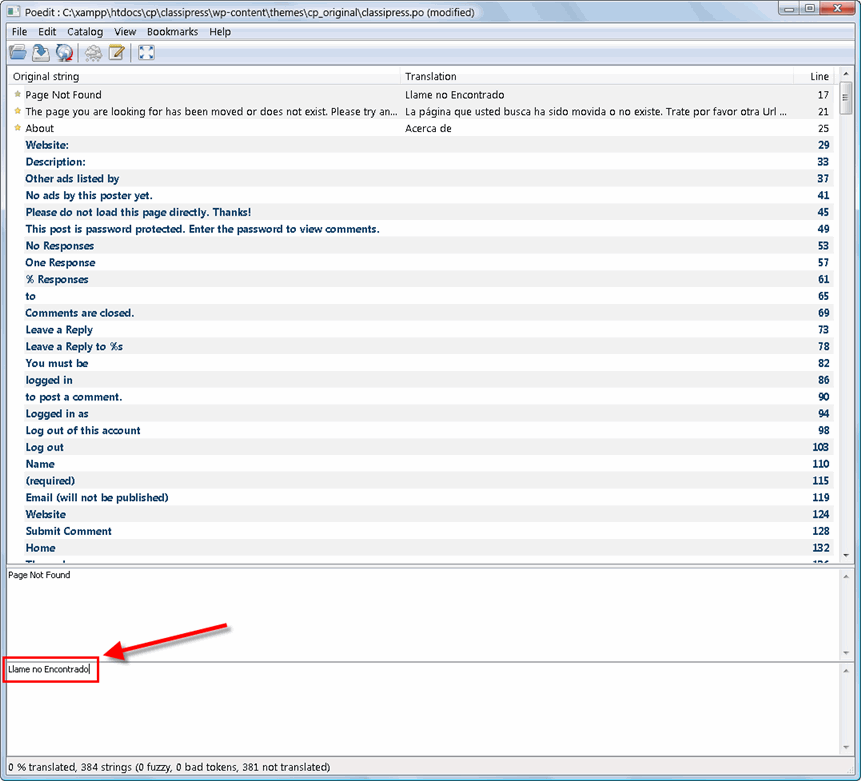
As you can see from the screen shot below, the top part of the file contains the entire list of text that needs to be translated. Each line represents a place within the WordPress theme or plugin that stores the text. If you click on different lines, you’ll notice the section below displays that exact line of text. What’s even cooler is if you right click on any line, you’ll see a file name and line number like “comments.php line 121″. That is the exact place in the theme or plugin where this text is being used.
poedit-usage
Now here’s where you need to pay attention. The blank box below that is where you will type in your translations. So in the screen shot I translated “Page not found” into Spanish by typing in the correct translation in the box below.
Important Note: Some text characters need to be converted into html entities otherwise they will not display correctly. A very common example is a word containing an apostrophe or single quote (‘) which needs to be replaced with ' — for example, Chloe O’Brian should be written as Chloe O'Brian. Kind of strange I know but that’s just how the parser works. For a complete list of html entities, visit W3Schools.
One other thing worth mentioning. PoEdit might give you an error related to “% comments” while you try to save the file (usually when you have a K preceding it like in German, “% Kommentare”). Usually if you just ignore the error, it will save fine. I will try and fix that comment translation issue in the next release.
After you start making updates, you’ll notice the upper right portion of the file will begin to fill in. Once you finish the translation (make sure to save often), you will have your final raw file.
Now that you’ve completed your translations, you can plug-in your file and see if it works. The .po file is your editable file which you can always load back up in poedit and update. The important file is the .mo file. This is what WordPress will use and if it’s for a new theme like ClassiPress, it needs to be placed in the /wp-content/themes/classipress directory.
I also forgot to mention that the naming of your .mo files is very important and must match the desired locale otherwise it won’t work. The naming convention is based on the language code (e.g. pt for Portuguese) followed by the country code (e.g. _BR for Brazil). So, the Brazilian Portuguese file would be called pt_BR.mo. See the complete list of language codes and country codes to find your exact locale.
You will also need to make a change to your WordPress wp-config.php file (located in your WP root directory) with the correct language codes like the example below. If you don’t have a WPLANG entry then create one.
define ('WPLANG', 'pt_BR');
Assuming you’ve made all these changes, you should now be able to reload your WordPress theme and see it in your native language! If it’s not working, chances are you didn’t use the correct naming conventions for your .mo file or in your wp-config.php file. If you see part of your site translated you either didn’t translate the entire .po file or the .po file wasn’t completely translated correctly in the first place.
So if you recently purchased ClassiPress and a language pack file (.mo) is not available for your native language, you should follow the steps above and create your own. ClassiPress is designed to work with virtually any language so just take the included .po file and translation away! Make sure to contact us and send over a copy so others can download your language pack. You will get full credit for the work and a link back to your site in return.

How to Update an Older .POT File

If you’ve previously translated an older version of ClassiPress and upgraded your site to the latest version of ClassiPress, you’ll notice the translation file no longer works correctly. This is due to the fact that the ClassiPress code has changed and the old .mo language file can no longer find the text locations.
Before I explain how to update your old language file to include the latest text to translate, I wanted to go behind the curtain and show you how it works. The .POT file is essentially a mapping of which text should be replaced in what file. It keeps track of this by file names and line numbers. When the ClassiPress code changes, it moves the line numbers so the .MO file can no longer find the original text to translate. To better understand what I’m talking about, open the .POT file with a text editor. You’ll see a bunch of readable lines that look like this:
#: 404.php:24
msgid “Whoops! Page Not Found.”
msgstr “Whoops! No se pudo encontrar la pagina.”
The first line tells the language processor what file (404.php) and line number (24) the text to be translated is located on. The “msgid” is the actual text that needs to be translated and the “msgstr” is the new translation (in this case, Spanish). Pretty easy once you understand how it works, huh?
Ok, so let’s talk about how to update your old ClassiPress.POT file.
  1. First open your old existing translated .POT file (i.e. pr_PR.po) in POEdit. “File” => “Open”
  2. Next you’ll need to compare it with the new .POT file. Do this by going to “Catalog” => “Update from POT file” and select your new .POT file.
  3. Now PoEdit will show you what text is new and needs to be translated. It should also update any other changes that have been made.
  4. After you have translated the new text, save the project and then it will create your new .MO file.
  5. Overwrite your old .MO file in your /themes/classipress/ directory and look at your site.
  6. Also make sure you’ve activated the latest version of the theme (the one that the new language file came with)
Now that should be it. Once you know how to work with existing .POT files, doing the updates can be really easy. Source: http://www.appthemes.com

Translating WordPress

Internationalization and localization are terms used to describe the effort to make WordPress (and other such projects) available in languages other than English, for people from different locales, who use different dialects and local preferences.
The process of localizing a program has two steps. The first step is when the program's developers provide a mechanism and method for the eventual translation of the program and its interface to suit local preferences and languages for users worldwide. WordPress developers have done this, so in theory, WordPress can be used in any language.
The second step is the actual localization, the process by which the text on the page and other settings are translated and adapted to another language and culture, using the framework prescribed by the developers of the software. WordPress has already been localized into many other languages (see WordPress in Your Language for more information).
This article explains how translators (bi- or multi-lingual WordPress users) can go about localizing WordPress to more languages.

Translating WordPress

Before you start translating WordPress, check WordPress in Your Language (and resources cited there) to see if a translation of WordPress into your language already exists. It is also possible that someone (or a team) is already working on translating WordPress into your language, but they haven't finished yet. To find out, subscribe to the polyglots' blog, introduce yourself, and ask if there's anyone translating into your language. There is also a list of localization teams and localization teams currently forming, which you can check to see if a translation is in progress.

Qualifications

Assuming that a WordPress translation into your language does not already exist or has someone working on it, you may want to volunteer to create a public translation of WordPress into your language. If so, here are the qualifications you will need:
  • You need to be truly bilingual -- fluent in both written English and the language(s) you will be translating into. Casual knowledge of either one will make translating difficult for you, or make the localization you create confusing to native speakers.
  • You need to be familiar with PHP, as you will sometimes need to read through the WordPress code to figure out the best way to translate messages.
  • You should be familiar with human language constructs: nouns, verbs, articles, etc., different types of each, and be able to identify variations of their contexts in English.

About Locales

A locale is a combination of language and regional dialect. Usually locales correspond to countries, as is the case with Portuguese (Portugal) and Portuguese (Brazil).
You can do a translation for any locale you wish, even other English locales such as Canadian English or Australian English, to adjust for regional spelling and idioms.
The default locale of WordPress is U.S. English.

Localization Technology

WordPress's developers chose to use the GNU gettext localization framework to provide localization infrastructure to WordPress. gettext is a mature, widely used framework for modular translation of software, and is the de facto standard for localization in the open source/free software realm.
gettext uses message-level translation — that is, every "message" displayed to users is translated individually, whether it be a paragraph or a single word. In WordPress, such "messages" are generated, translated, and used by the WordPress PHP files via two PHP functions. __() is used when the message is passed as an argument to another function; _e() is used to write the message directly to the page. More detail on these two functions:
__('message') 
Searches the localization module for the translation of 'message', and passes the translation to the PHP return statement. If no translation is found for 'message', it just returns 'message'.
_e('message') 
Searches the localization module for the translation of 'message', and passes the translation to the PHP echo statement. If no translation is found for 'message', it just echoes 'message'.
Note that if you are internationalizing a Theme or Plugin, you should use a "Text Domain". See Writing a Plugin for more information on how to do this for a plugin; themes are similar.
The gettext framework takes care of most of WordPress. However, there are a few places in the WordPress distribution where gettext cannot be used -- see Files For Direct Translation for more information on how to translate these spots.

gettext files

There are three types of files used in the gettext translation framework. These files are used and/or generated by translation tools during the translation process, as follows:
POT (Portable Object Template) files 
The first step in the localization process is that a program is used to search through the WordPress source code and pick out every message passed into a __() or _e() function. This list of English-language messages is put into a specially-formatted template file (POT file) that forms the basis of all translations. Generally, you can download a POT file for WordPress, so you shouldn't have to generate your own. Separate POT files can also be made for themes and plugins, if the theme/plugin developer has enclosed all text in __() or _e() functions.
PO (Portable Object) files 
The second step in the localization process is that the translator translates all the messages from the POT file into the target language, and saves both English and translated messages in a PO file.
MO (Machine Object) files 
The final step in the localization process is that the PO file is run through a program that turns it into an optimized machine-readable binary file (MO file). Compiling the translations to machine code makes the localized program much faster in retrieving the translations while it is running.

Translation Tools

There are various tools available to aid in translating. You may use whichever you prefer.
GlotPress 
GlotPress will let you, or an entire team, translate your favourite software. It is web-based and open-source. It is also completely in sync with the main repositories and the preferred method for translating WordPress into your language.
Launchpad 
The Ubuntu Linux project has a web site that allows you to translate messages without even looking at a PO or POT file, and export directly to a MO.
Note: many translators have found Rosetta to be a good starting point, but once it comes time to proofread the entire list of translations, many have opted to switch hand-editing the PO file or using a program like Poedit or KBabel, since the Rosetta UI lacks a search feature and other things that become essential when proofreading and editing.
Pootle 
An open source web-based translation system. The server hosted at Locamotion.org currently has WordPress translation enabled on it.
Poedit 
An open source program for Windows, Mac OS X and UNIX/Linux which provides an easy-to-use GUI for editing PO files and generate MO files.
KBabel 
Another open source PO editing program for the KDE window manager on Linux.
GNU Gettext 
The official Gettext tools package contains command-line tools for creating POTs, manipulating POs, and generating MOs. For those comfortable with a command shell.

Translating With GlotPress

There is a page with instructions on how to translate with GlotPress, on the Getting Started guide.. If you don't see your language listed, please request its inclusion on the WP Polyglots blog.

Translating With Launchpad

We have a separate page with instructions for translating WordPress with Launchpad.

Translating With Pootle (at Locamotion.org)

  1. Register an account at the Pootle server, and send an e-mail to one of the admins to add your language
  2. Before trying to translate anything, remember to log in to Pootle. Content can sometimes be viewed and suggestions can sometimes be entered even if a visitor is not logged in, but one can only translate if logged in.
  3. Visit the WordPress page for your language. For example, the Afrikaans page is at pootle.locamotion.org/af/wordpress/ (remember the trailing slash).
  4. Click "Show Editing Functions".
  5. Click "Quick Translate" to edit only untranslated and fuzzy strings, or click "Translate All" to edit all strings.
For the purpose of translating WordPress at locamotion.org, the single wordpress.pot file has been split up into smaller logical units. The readme.html file is also available there, and so is a file containing all the strings that one would normally add to the PHP files manually.
Also take a look at the Decathlon wiki page for WordPress, here and here.
Merging your translations into wordpress.pot
Normally, with a Pootle server, the translator can download his chosen software's PO file at any time and submit it to his project. However, because the original source file has been split into smaller units at pootle.locamotion.org, translators must manually merge their translations back into the wordpress.pot file before submitting it to WordPress.
  1. Download the official WordPress POT file.
  2. Download the WordPress Continent POT file (Optional)
  3. Download and install the Translate Toolkit on your computer.
  4. Download the translated or partially translated PO files from the Pootle server. You can download them one by one or you can download them in a ZIP file (see options on the web site). Normally you don't need to be logged in at Poolte to download the PO files that translators in your language have translated.
  5. First, combine the PO files into a single translation memory (because it is easier to do subsequent steps with a single file than with several files), and execute the following from the command line: po2tmx -l xx -i pofiles -o xx.tmx where "xx" is your target language code. This will create a TMX translation memory file called xx.tmx.
  6. Second, pre-translate the WordPress POT file using the translation memory. To do this, execute the following from the command line: pot2po --tm=xx.tmx -i wordpress.pot -o wordpress_xx.po. This will create a PO file for your language called wordpress_xx.po.
  7. Lastly, do a word/string count on your PO file to see how much of it is translated, fuzzy and untranslated, using the following from the command line: pocount wordpress_xx.po
If all the PO files were 100% translated, the final wordpress_xx.po file will also be 100% translated. If some strings were not translated in the PO files, the pot2po command might cause some fuzzy translations in wordpress_xx.po (this is not a bad thing).

Translating With Poedit

  1. Download and install Poedit
  2. Download the official WordPress POT file
    The Poedit screen
  3. Open the file in Poedit.
  4. (See Image) The box labeled (1) is the original message (in English) from the POT file. The box labeled (2) is where you add your translation. Boxes labeled (3) and (4) are used for adding comments about the messages. These come in handy if you are working with a team of translators and would like to pass around ideas through the PO file.
  5. Go to File → Save as… to save your translations in a PO file.
  6. When you are finished translating, go to File → Save as… again to generate the MO file.
  7. Or you can set your Poedit to always compile a MO file when saving changes by clicking File → Preferences and on the Editor tab check the Automatically compile .mo file on save box.

Translating With KBabel

This section is incomplete.
  1. Download the official WordPress POT file
  2. Open the file in KBabel

Translating With Gettext Tools

  1. Download the official WordPress POT file
  2. Open the file in your favorite text editor
  3. Update the header information
  4. Translate the messages
  5. Save the file with a .po file extension
  6. Issue msgfmt -o filename.mo filename.po

The PO File Header

At the beginning of the PO file is something called the header. This gives information about what package and version the translation is for, who the translator was, and when it was created. Certain portions of this header should be universal for all WordPress translations:
# LANGUAGE (LOCALE) translation for WordPress.
# Copyright (C) YEAR WordPress contributors.
# This file is distributed under the same license as the WordPress package.
# FIRST AUTHOR <EMAIL@ADDRESS>, YEAR.
#
#, fuzzy
msgid ""
msgstr ""
"Project-Id-Version: WordPress VERSION\n"
"Report-Msgid-Bugs-To: \n"
"POT-Creation-Date: 2005-02-27 17:11-0600\n"
"PO-Revision-Date: YEAR-MO-DA HO:MI+ZONE\n"
"Last-Translator: FULL NAME <EMAIL@ADDRESS>\n"
"Language-Team: LANGUAGE <LL@li.org>\n"
"MIME-Version: 1.0\n"
"Content-Type: text/plain; charset=CHARSET\n"
"Content-Transfer-Encoding: 8bit\n"
Fill in the rest of the capitalized text with the appropriate values.

Message Format

The remainder of the file will be in a format as follows:
#: wp-comments-post.php:13
msgid "Sorry, comments are closed for this item."
msgstr ""

#: wp-comments-post.php:29
msgid "Sorry, you must be logged in to post a comment."
msgstr ""

#: wp-comments-post.php:35
msgid "Error: please fill the required fields (name, email)."
msgstr ""
The first line of each message contains the location of the message in the WordPress code. In the case of these messages, they're all located in wp-comments-post.php, on lines 13, 29, and 35, respectively. Occasionally you will come across a message for which you will need to check its context; look at the appropriate line or lines in the WordPress core, and you should be able to figure out when and where the message is displayed, and even reproduce it yourself using your web browser. Some messages will also appear with the same text in multiple locations; in that case, there may be more than one line giving a file and line location.
The next line, msgid, is the source message. This is the string that WordPress passes to its __() or _e() functions, and the message you will need to translate.
The final line, msgstr, is a blank string where you will fill in your translation.
Here's how the same few lines would look after being translated, using the French (France) locale as an example:
#: wp-comments-post.php:13
msgid "Sorry, comments are closed for this item."
msgstr "L'ajout de commentaire n'est pas ou plus possible pour cet article."

#: wp-comments-post.php:29
msgid "Sorry, you must be logged in to post a comment."
msgstr "Vous devez être connecté pour rédiger un commentaire."

#: wp-comments-post.php:35
msgid "Error: please fill the required fields (name, email)."
msgstr "Erreur : veuillez remplir les champs obligatoires vides (nom, e-mail)."
Note: see Character encodings and HTML character entities below for notes on when to use HTML character entities in translation.

Types of messages

Labels

Labels are often used in the context of HTML <label>, <legend>, <a>, or <select> tags. They are short and precise descriptors of the purpose of a UI element. These can be very difficult to translate at times, especially if they are single words, and if the word used in English can be interpreted as either a noun or imperative verb. With most labels you will need to do some searching through the code to find the context of its use before coming up with an appropriate translation.
Because so many of the messages are part of the WordPress administration interface, Labels are probably the most frequent type of message to translate.

Examples

msgid "Post"
msgstr "Artikkeli"
"Post" could be interpreted as an imperative verb, but in this context it's a noun. The noun form of "post" in English can be difficult to translate, and the most appropriate translation has been difficult for some teams to decide upon. Many translations use their language's equivalent to the English "Article," as this one does. (From the Finnish (Finland) translation.)
#: wp-login.php:79 wp-login.php:233 wp-register.php:166
#: wp-includes/template-functions-general.php:46
msgid "Register"
msgstr "रजिस्टर"
From the Hindi translation.
#: wp-admin/admin-functions.php:357
msgid "- Select -"
msgstr " - Dewis -"
Items like the surrounding dashes in this example can be eliminated or replaced if they might be confusing to users in your target locale, or if there are different established conventions for your locale. From the Welsh translation.

Informational Messages

Another frequent type of message, the informational message is usually composed of full sentences, and conveys information or requests an action of the user. Since these tend to be longer than labels, they tend to be slightly easier to translate. However, with the longer messages comes more variation in the level of formality (or informality), which is something translators need to be aware of.

Examples

#: wp-login.php:146
msgid "Your new password is in the mail."
msgstr "Вашата нова парола е в електронната ви поща."
This particular message contains a modified English formulaic expression ("the check/cheque is in the mail"), which contributes to its informality. (From the Bulgarian (Bulgaria) translation.)
#: wp-includes/functions.php:1636
msgid "<strong>Error</strong>: Incorrect password."
msgstr "<strong>FEL</strong>: Felaktigt lösenord."
Error messages tend to be more formal, simply because they're short and concise. (From the Swedish (Sweden) translation.)
#: wp-includes/functions-post.php:467
msgid "Sorry, you can only post a new comment once every 15 seconds. Slow down cowboy."
msgstr "Leider kannst du nur alle 15 Sekunden einen neuen Kommentar eingeben. Immer locker bleiben."
Of course, not all of them. (From the German (Germany) translation.)

Strings with description

If a string contains a vertical bar |, the part on the right of | is a description. Its purpose is to help you translate the string, placing it in certain context or providing additional information.

Examples

#: wp-includes/locale.php:186
msgid ""
"number_format_decimal_point|$dec_point argument for http://php.net/number_format, default is ."
msgstr ","
The description suggest you look at a web page, in order to translate the string.

Date and Time Locale Settings

Rather than using PHP's built-in locale switching features, which is not configured for very many languages on most hosts, WordPress uses the gettext translation module to accomplish date and time translations and formatting.
WordPress translates the following:

Month names

#: wp-includes/locale.php:42 wp-includes/locale.php:57
msgid "May"
msgstr "Květen"
(From the Czech (Czech Republic) translation.)

Month abbreviations

#: wp-includes/locale.php:57
msgid "May_May_abbreviation"
msgstr "Mag"
Note the unusual msgid. These messages should NOT be translated literally: they are a hack to get around the fact that in English, the full name and abbreviation for May are the same, which Gettext would erroneously combine into one entry. (From the Italian (Italy) translation.)

Weekday Names

#: wp-includes/locale.php:7
#: wp-includes/locale.php:18
#: wp-includes/locale.php:31
msgid "Tuesday"
msgstr "火曜日"
(From the Japanese (Japan) translation.)

Weekday Abbreviations

#: wp-includes/locale.php:31
msgid "Tue"
msgstr "Уто"
(From the Serbian (Serbia) translation.)

Weekday Initials

#: wp-includes/locale.php:18
msgid "T_Tuesday_initial"
msgstr "ti"
The weekday initials are for WordPress's calendar feature, and use the same hack as the month abbreviations to get around the fact that in English Tuesday and Thursday share the same first letter. Not all locales use single-letter abbreviations for all days: in this example, Norwegian Bokmål uses an extra letter to distinguish tirsdag (Tuesday) and torsdag (Thursday). (From the Norwegian Bokmål (Norway) translation.)

Date Formatting Strings

These are PHP date() formatting strings, and they allow you to change the formatting of the date and time for your locale.
WordPress uses the translations elsewhere in the localization file for month names, weekday names, etc. This special string is for the selection of which elements to include in the date & time, as well as the order in which they're presented.
Take this msgid from the theme.pot file:
#: archive.php:40 search.php:19 single.php:22
msgid "l, F jS, Y"
msgstr ""
In English, this gets formatted as:
Sunday, February 27th, 2005
However, different locales format their dates differently. In Danish, for example, dates are written:
søndag, 27. februar 2005
To accomplish this, the msgid above would be translated to:
#: archive.php:40 search.php:19 single.php:22
msgid "l, F jS, Y"
msgstr "l, j. F Y"
To use another example, one way to format dates in Chinese and Japanese is as follows:
2005年2月27日
This would be accomplished in the translation like this:
#: archive.php:40 search.php:19 single.php:22
msgid "l, F jS, Y"
msgstr "Y年n月j日"
Lastly, if you need to include literal alphabetic characters in your date format, as sometimes occurs in Spanish, you can backslash them:
#: archive.php:40 search.php:19 single.php:22
msgid "l, F jS, Y"
msgstr "l j \d\e F \d\e Y "
This would output:
domingo 27 de febrero de 2005

Translation via WordPress-PHP

To translate a date, e.g. inside your plugin, use mysql2date() or date_i18n(). Your date will be returned in localized format, based on the timestamp.

Messages With Placeholders

Many messages contain special PHP formatting placeholders, which allow the insertion of untranslatable dynamic content into the message after it is translated. The PHP placeholders come in two different formats:
%s 
When only one placeholder is present, this marker is used.
%1$s, %2$s, %3$s, … 
Numbered placeholders, which allow translations to rearrange the order of the placeholders in the string while maintaining the information each is replaced with.

Examples

#: wp-login.php:116
msgid "The e-mail was sent successfully to %s's e-mail address."
msgstr "El e-mail fue enviado satisfactoriamente a la dirección e-mail de %s"
This message inserts the username of the user to which an email has been sent. (From the Spanish (Spain) translation.)
#: wp-admin/upload.php:96
#, php-format
msgid "File %1$s of type %2$s is not allowed."
msgstr "类型为%2$s的文件%1$s不允许被上传。"
This message reverses the order in which the file name and type are used in the translation. (From the Chinese (China) translation.)

Tips for Good Translations

Don't translate literally, translate organically 
Being bi- or multi-lingual, you undoubtedly know that the languages you speak have different structures, rhythms, tones, and inflections. Translated messages don't need to be structured the same way as the English ones: take the ideas that are presented and come up with a message that expresses the same thing in a natural way for the target language. It's the difference between creating an equal message and an equivalent message: don't replicate, replace. Even with more structural items in messages, you have creative license to adapt and change if you feel it will be more logical for, or better adapted to, your target audience.
Try to keep the same level of formality (or informality) 
Each message has a different level of formality or informality. Exactly what level of formality or informality to use for each message in your target language is something you'll have to figure out on your own (or with your team), but WordPress messages (informational messages in particular) tend to have a politely informal tone in English. Try to accomplish the equivalent in the target language, within your cultural context.
Don't use slang or audience-specific terms 
Some amount of terminology is to be expected in a blog, but refrain from using colloquialisms that only the "in" crowd will get. If the uninitiated blogger were to install WordPress in your language, would they know what the term means? Words like pingback, trackback, and feed are exceptions to this rule; they're terminology that are typically difficult to translate, and many translators choose to leave in English.
Read other software's localizations in your language 
If you get stuck or need direction, try reading through the translations of other popular software tools to get a feel for what terms are commonly used, how formality is addressed, etc. Of course, WordPress has its own tone and feel, so keep that in mind when you're reading other localizations, but feel free to dig up UI terms and the like to maintain consistency with other software in your language.

WordPress Localization Repository

The WordPress Localization Repository at http://i18n.svn.wordpress.org/ is a Subversion repository where official WordPress translations are maintained. Various teams collaborate on translations for their native language, and team maintainers commit updates and changes to the repository.

Participating

Participation in the repository is open to anyone. Simply visit the WP Polyglots Blog, introduce yourself, and let everyone know what translation you'd like to work on. If there is already a team for your language and locale, they'll let you know and you can join them. If not, you can either volunteer to be a maintainer for your language and locale, or simply contribute your localization and the repository maintainers will add it.

Guidelines and requirements

Note: these guidelines are subject to change as the system evolves; repository maintainers will be happy to assist you in updating the files you maintain in the repository should these guidelines change.

Character Encodings

All localizations should have at least a UTF-8 version, but may optionally add versions in other character encodings popular for that locale.
Current PHP versions don't support Byte Order Markers (BOMs), so be sure the UTF-8 encoded files you contribute do not have them.

HTML Character Entities

With a few exceptions (noted below), all translations should be written literally, rather than escaping accented and special characters with HTML character entities.
Some characters must be escaped to avoid conflict with XHTML markup: angle brackets (&lt; and &gt;), and ampersands (&amp;). In addition, there are a few other characters better used escaped, such as non-breaking spaces (&nbsp;), angle quotes (&laquo; and &raquo;), curly apostrophes (&#8217;) and curly quotes.
For more information about the W3C's best practices involving character encodings and character entities, see the following references:

Repository File Structure

The repository contains directories for each locale, which are named as follows:
Within each locale's directory are the regular Subversion versioning directories: branches/, tags/, and trunk/.
Inside the appropriate versioning directory are the following subdirectories:
messages/
  • messages/
    • kubrick

This directory contains the Gettext MO and PO files for the locale. Message files are named after the locale name.
In the kubrick folder you should put the translation (using exactly the same PO/MO filename as above) of the i18n-ed default theme, residing at the wordpress-i18n svn repository. There is also another way of translating the default theme:
dist/
This directory contains all files in the WordPress distribution that cannot be Gettexted, which have been translated into the target locale.
If the locale has only a UTF-8 translation of the files, the dist/ directory may be populated with them directly, and the structure within dist should mirror the structure of the WordPress root directory:
  • dist/
    • license.txt
    • readme.html
    • wp-config-sample.php
    • wp-admin/
theme/
It is better to translate the i18n-ed kubrick (see the messages/ part above), instead of using theme/.
Similarly to the dist/ dir, theme/ contains hard-translated theme files. If only a UTF-8 translation is present, the directory can be populated with subdirectories for each theme translated. These subdirectories contain all of the same files as the original theme (except that they're translated), and are named the same as the original theme:
  • theme/
    • default/
      • 404.php
      • index.php
      • sidebar.php
      • images/
Just as with the dist/ directory, if there are multiple character encodings represented, theme/ should contain a subdirectory for each character encoding, which in turn would contain subdirectories for each theme translated.

Using Localizations

In order to localize your installation of wordpress, create a directory named languages inside of wp-includes, if it does not already exist. Then grab the appropriate localization files from the Subversion Repository as described above. The main .mo file and the continent .mo file for the language should go inside the languages directory. Set WPLANG inside of wp-config.php to your chosen language. For example, if you wanted to use french, you would have:
define ('WPLANG', 'fr_FR');

Troubleshooting

Rosetta won't export my translation as an MO file. It just says, "A system error occurred." 
There is a syntax error in your translation that is preventing it from compiling to an MO. Download the PO instead and try compiling it manually with msgfmt. This will tell you which lines the errors are on so you can correct them by hand. If you don't have the GNU Gettext package installed, you can try opening the PO file in Poedit or KBabel to see if they will help you correct the errors, or you can email the wp-polyglots mailing list and ask for someone to debug it for you.Source: http://codex.wordpress.org

7 Mistakes Freelance Translators Should Avoid

There are several measures you can take to establish productive relationships with your customers. Delivering high quality translations and keeping up with deadlines will play the most important part of course.
There are many things we have learnt by working with hundreds upon hundreds of translators and clients over the years, which we thought would be good to share with you: avoiding the seven mistakes identified in this article will help you have a long term relationship with your clients, and will more importantly, ensure that you run a stress free business.
7 mistakes you should avoid
1 – Charging too little for your core service.
Never sell your core service too cheaply. It will devalue your product and customers may not appreciate it. You can offer free test translations or reduced charges for your supplementary services such as job-checking or for translations of only a few words.
If you charge too little for your core service in order to get new clients, you will despise them in the long run; and if you charge them less the first time, they will expect you to charge the same rate the next time they work with you. The relationship may suffer when you would, only naturally want to put your prices up.
2 – Being afraid to ask your customer questions.
Do not be concerned with asking your clients questions about the files you are translating: there is nothing wrong with going back to your customer asking for clarification of words that maybe be difficult to read or understand. They will not think any less of you because you asked a question. Be sure, however to ask relevant questions, well in advance of the deadline.
3 – Thinking you will lose your customer if you turn down a project.
If the project offered to you is in a subject you do not know about, or a deadline you cannot meet, don’t be afraid to turn down the project. Whatever the reason may be, being clear and open to your client about it will help you to establish long lasting relationships. Taking on a project which you cannot properly translate, or accepting a deadline which is not feasible will do more damage to the relationship than turning down a project for a perfectly valid reason.
4 – Only getting in touch with your customer when you need work from them.
Keep in touch with your customers regularly. Let them know how you are doing. Tell them about the new tools or software you may have acquired, and any new skills you may have learned since last working with them.
5 – Thinking that you are the only translator your client should work with.
Translation companies need to have multiple translators for each language pair they work with and in particular subject matters. Do not feel threatened if your client uses another translator and asks you to carry out checking or proofreading: this means they trust you and value your opinion.
6 – Not having a specialist subject.
Without a doubt translators need to be able to cover a variety of subjects: they will also need, however, to have a specialism in which they have extra knowledge which sets them apart from other translators. Your niche will help you to become an authority in your particular field and the first port of call with your customers.
7 – Not collaborating with your fellow translators.
The translation community is global and we all have the same aspirations and challenges wherever we are in the world. There are many professional support organisations and associations out there for translators. Most successful translators are the ones that support their colleagues and share information. Source: http://yildizgoren.wordpress.com

20+ Programs That You Should Run Regularly On Your PC

Many PC users do not think about maintenance as long as their system is running as intended. The issue here is that they might be able to resolve future issues, or mitigate them at least, if they would run a set of tools regularly on their PC. The following guide looks at some of the recommended programs – my recommendations – that should be run regularly on a PC. Not all are maintenance related though, you also find security and privacy programs in the list for instance.
1. Security
Windows PCs these days are better protected than they were ten years ago. Microsoft is for instance shipping additional security software with newer versions of the operating system, and providing free downloads of tools such as Microsoft Security Essentials. Most users run at least an antivirus software on their system, others may have added firewalls, anti-spyware tools or sandboxing programs to that list. That’s a solid setup, provided that the programs get updated regularly.
But even if your PC is Fort Knox, I’d suggest to run additional on-demand software to make sure the system has not been compromised.
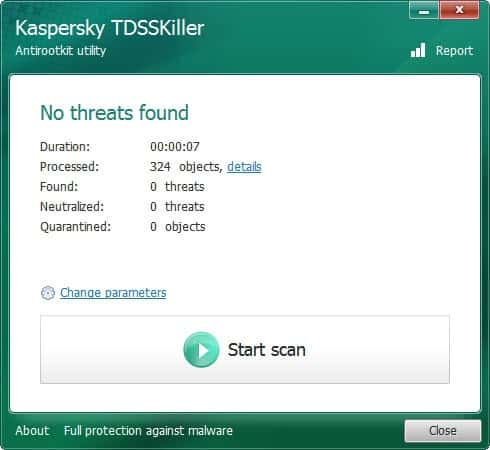
kaspersky tdsskiller
  • Kaspersky TDSSKiller – Detects rootkits that other security software may have missed. Can disinfect a system when rootkits have been discovered in the scan.
  • HiJackThis – Recently turned into an Open Source application. The program, that checks various system locations for adware and manipulation.
  • Dr.Web CureIt! – A free on-demand scanner that can check your system directly and without installation.
  • CurrPorts – Scans your system for open ports. Display process names that are responsible for the open ports. Ideal for closing down ports that do not need to be open.
  • Process Explorer – Use the program to verify the processes that are running on your system. This way you may catch malicious or unwanted processes.
  • Update Checker – Checks the system for software that needs updating. Alternative: PSI
  • EaseUS Todo Backup – Backups are important, as they may be your only way to access your data if your system crashes, or your PC gets stolen or destroyed. Alternatives: Cobian Backup, Free Backup Software List
2. Privacy
Privacy is all about making sure that you do not leak information or data out in the open. On PCs, this usually comes back to removing temporary or deleted files.
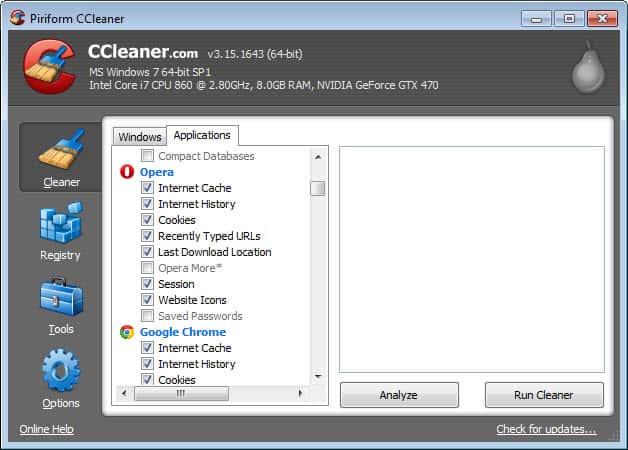
ccleaner
  • CCleaner – It seems everyone knows the program. I suggest you install CCleaner Enhancer on your system to make it even more effective. It can delete your browsing history, cookies, information about files you have run or your web searches. Alternative: Bleachbit
  • Eraser – This program overwrites the free space on your system so that deleted files and data cannot be recovered anymore with file recovery software. Keep in mind that this only works on platter-based hard drives, and not the newer Solid State Drives.
3. Maintenance
Maintenance ensures that your system runs as smoothly as it did on the first day of operation. Even if you are a light user, operations eventually will take their toll on your system.
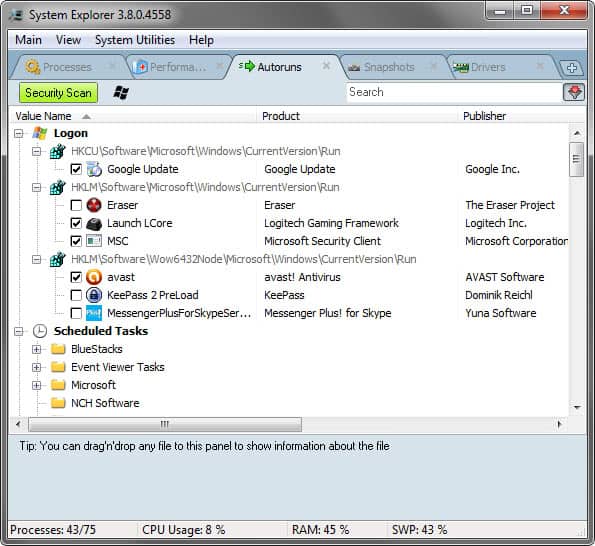
autoruns
  • Autoruns – Applications that are started automatically when the system boots, can slow down the PC. While it makes sense to keep some, the antivirus program for instance, you might not need the Office or Adobe Reader Quickstarter to be started with the PC, especially so if you are not using the programs regularly (or if you do not mind waiting a few seconds on first program start).
  • Defraggler – Fragmentation basically happens when a file needs to be saved in different locations on the hard drive. This may slow down the time it takes to open it on the system. A tool like Defraggler defragments the hard drive to correct the situation. This is only necessary for platter-based hard drives and not for Solid State Drives. Alternative: MyDefrag
  • Revo Uninstaller Free – If you need to uninstall software, you should use a program like Revo Uninstaller and not the default Windows applet to do so. Revo scans the system for leftovers after the default uninstaller to make sure that all traces of the program have been removed from the hard drive and system registry.
4. Hardware
Some hardware related issues can be detected before it is to late. This includes hard drives that will likely stop working in the near future, or overheating issues of the built-in video card.
speedfan
  • Speedfan – Displays hard drive temperatures and S.M.A.R.T. values among other things. Can be used to make sure that the system temperature is in acceptable levels, and that hard drives are not likely to die in the near future. Alternatives: Core Temp for processor temperature readings, Real Temp, CPU ID Source: ghacks.net

Monday, February 27, 2012

Windows codes

  1. Windows:3KFB7-X2Q3M-6MWFX-W2Y7V-C7M9D - Microsoft Windows XP (United States) x86:
  2. Windows:Q3X96-FD27Q-8CTD2-PC262-DKYFJ - Microsoft Windows XP (Spain) x86:
  3. Windows:XJM6Q-BQ8HW-T6DFB-Y934T-YD4YT - Microsoft Windows XP (Canada) x86:
  4. Windows:22TKD-F8XX6-YG69F-9M66D-PMJBM - Windows 7 Ultimate (United States) x86:
  5. Windows:XH82J-CWDJG-D3BV7-CKQ2W-6VHJ7 - Windows Vista (TM) Home Premium (Netherlands) x86:
  6. Windows:Q76KK-X6PD2-C2JHC-4RDG3-8WW48 - Microsoft Windows XP (United States) x86:
  7. Windows:HYF8J-CVRMY-CM74G-RPHKF-PW487 - Windows 7 Professional (India) x86:
  8. Windows:M3R9P-DK4D8-FTF3V-C7QT3-YBCBG - Microsoft Windows XP (United States) x86:
  9. Windows:F9WD2-VGJJC-7PPBH-98K8Y-F8WRM:
  10. Windows:C4YKC-4DXPB-4G3WD-TDFX9-6QFVG - Microsoft Windows XP (Italy) x86:
  11. Windows:B3P7V-Q2WTH-CRK4R-YHJRF-39H4M - Microsoft Windows XP (Spain) x86:
  12. Windows:2R6WF-KYF88-27HYQ-XTKW2-WQD8Q - Windows Vista (TM) Home Premium (United States) x86:
  13. Windows:RCBF6-6KDMK-GD6GR-K6DP3-4C8MT - Microsoft Windows XP (Netherlands) x86:
  14. Windows:2TYBW-XKCQM-XY9X3-JDXYP-6CJ97 - Windows Vista (TM) Home Premium (Finland) x86:
  15. Windows:B77QF-DP27W-4H68R-72B48-78RPD:
  16. Windows:8XPDH-PCKKG-6MPKT-FTM67-2FMWG - Microsoft Windows XP (Argentina) x86:
  17. Windows:342DG-6YJR8-X92GV-V7DCV-P4K27 - Windows 7 Ultimate (United Kingdom) x86:
  18. Windows:XP8BF-F8HPF-PY6BX-K24PJ-TWT6M - Microsoft Windows XP (United Kingdom) x86:
  19. Windows:VFWGM-3GRYG-QB43V-MVP84-XB3G9 - Microsoft Windows XP (Croatia) x86:
  20. Windows:CB9YB-Q73J8-RKPMH-M2WFT-P4WQJ - Microsoft Windows XP (Croatia) x86:
  21. Windows:HM4MD-6QXR3-2PD6D-9X8YC-26QYY - Microsoft Windows XP (Croatia) x86:
  22. Windows:MR49R-DRJXX-M6PX2-V96BF-8CKBJ - Microsoft Windows XP (Poland) x86:
  23. Windows:RCCM2-DT4TD-DQKF3-CFQWM-4GWQG - Microsoft Windows XP (Slovenia) x86:
  24. Windows:D36RK-QDFFD-BTWWY-BT7KK-43MGM - Microsoft Windows XP (France) x86:
  25. Windows:KG27H-JV9M6-2CXKV-GMP22-HF2BQ - Microsoft Windows XP (United Kingdom) x86:
  26. Windows:K2KB2-BDBGV-KP686-D8T7X-HDMQ8 - Microsoft Windows XP (Poland) x86:
  27. Windows:CB9YB-Q73J8-RKPMH-M2WFT-P4WQJ - Microsoft Windows XP (United States) x86:
  28. Windows:D36RK-QDFFD-BTWWY-BT7KK-43MGM - Microsoft Windows XP (Hungary) x86:
  29. Windows:RH6M6-7PPK4-YR86H-YFFFX-PW8M8 - Microsoft Windows XP (United States) x86:
  30. Windows:V2C47-MK7JD-3R89F-D2KXW-VPK3J - Microsoft Windows XP (United States) x86:
  31. Windows:XVX72-2WCXQ-48VWH-T66HT-C7R2B - Microsoft Windows XP (Spain) x86:
  32. Windows:FCKGW-RHQQ2-YXRKT-8TG6W-2B7Q8 - Microsoft Windows XP (Poland) x86:
  33. Windows:FCKGW-RHQQ2-YXRKT-8TG6W-2B7Q8 - Microsoft Windows XP (Poland) x86:
  34. Windows:XVX72-2WCXQ-48VWH-T66HT-C7R2B - Microsoft Windows XP (Spain) x86:
  35. Windows:DH43F-Q26JD-HC8JT-FBTXW-66VFT - Microsoft Windows XP (United States) x86:
  36. Windows:CB9YB-Q73J8-RKPMH-M2WFT-P4WQJ - Microsoft Windows XP (Romania) x86:
  37. Windows:KGBQ6-JYVB9-7X6RG-VX44H-76DFD - Microsoft Windows XP (Hungary) x86:
  38. Windows:P8HY6-D3G46-RVF66-GP7VM-8CFT3 - Microsoft Windows XP (Netherlands) x86:
  39. Windows:B294T-B3CP4-XQ2CX-2PW33-HHHFT - Microsoft Windows XP (United States) x86:
  40. Windows:QW4HD-DQCRG-HM64M-6GJRK-8K83T - Microsoft Windows XP (United States) x86:
  41. Windows:V2C47-MK7JD-3R89F-D2KXW-VPK3J - Microsoft Windows XP (France) x86:
  42. Windows:MR49R-DRJXX-M6PX2-V96BF-8CKBJ - Microsoft Windows XP (Netherlands) x86:
  43. Windows:2Y4WT-DHTBF-Q6MMK-KYK6X-VKM6G - Windows 7 Ultimate (Mexico) x86:
  44. Windows:2R6WF-KYF88-27HYQ-XTKW2-WQD8Q - Windows Vista (TM) Home Premium (India) x86:
  45. Windows:PMHCW-J9KB7-P8RWM-VYDMV-X273D - Microsoft Windows XP (Netherlands) x86:
  46. Windows:33PXH-7Y6KF-2VJC9-XBBR8-HVTHH - Windows 7 Home Premium (United States) x86:
  47. Windows:6K2KY-BFH24-PJW6W-9GK29-TMPWP - Windows 7 Ultimate (Mexico) x86:
  48. Windows:22TKD-F8XX6-YG69F-9M66D-PMJBM - Windows 7 Ultimate (France) x86:
  49. Windows:JFBDT-PCRM9-4B96R-WQQK7-MPRKY - Microsoft Windows XP (Italy) x86:
  50. Windows:XJM6Q-BQ8HW-T6DFB-Y934T-YD4YT - Microsoft Windows XP (United States) x86:
  51. Windows:HYF8J-CVRMY-CM74G-RPHKF-PW487 - Windows 7 Professional (Colombia) x86:
  52. Windows:MDHCW-FXHR6-4B9C6-T6VW7-XXB4T - Microsoft Windows XP (Netherlands) x86:
  53. Windows:QHMD2-P4M94-TPQTW-PPB9X-GGC33 - Microsoft Windows XP (Russia) x86:
  54. Windows:RHKG3-8YW4W-4RHJG-83M4Y-7X9GW - Microsoft Windows XP (Spain) x86:
  55. Windows:RHKG3-8YW4W-4RHJG-83M4Y-7X9GW - Microsoft Windows XP (Spain) x86:
  56. Windows:GR6F7-KD9T9-Y6MPV-W3W6D-M69DJ - Microsoft Windows XP (Australia) x86:
  57. Windows:BBBBB-BBBBB-BBBBB-BBBBB-BBBBB - Windows 7 Enterprise (Hungary) x86:
  58. Windows:22TKD-F8XX6-YG69F-9M66D-PMJBM - Windows 7 Ultimate (Netherlands) x86:
  59. Windows:7FMM3-W4FMP-4WRXX-BKDRT-7HG48 - Microsoft Windows XP (Poland) x86:
  60. Windows:C686V-R298Q-RWG42-GHGH3-YQXHG - Microsoft Windows XP (Hungary) x86:
  61. Windows:22TKD-F8XX6-YG69F-9M66D-PMJBM - Windows 7 Ultimate (Netherlands) x86:

Sunday, February 26, 2012

Freeware and Open Source Software

Standalone, desktop software:
  • ChromePlus - special build of Chromium as a browser replacement for Chrome.  We've all heard of Chrome by now, the super-fast browser by Google based on its open source Chromium.  Whilst Chrome aims to be a reliable bare-bones browser, it does not completely replace Internet Explorer on Windows.  You still need to revert to the trusty old IE to visit some sites, especially for work.  Since I've been using it, ChromePlus has stood up as a true standalone browser with its built-in IE Tab functionality and other lesser tweaks that make for a smooth browsing experience.  Though there is an IE Tab plugin for Chrome, I have found that it drops sessions when trying to use the back button, as well as other issues that just don't happen in ChromePlus's implementation.  My favourite plugin for ChromePlus at the moment is iReader - makes articles on web pages awesomely readable.

    Of course, ChromePlus can use Chrome extensions.  Extensions I use are:
    • Web Cache - when you hit a page that is no longer available, just use buttons from the Web Cache plugin to automatically open the page from a variety of internet archive sources
    • iReader - magically takes a cluttered web page and just gives you clean, easy to read content
    • Session Manager - often, researching a topic involves lots of open tabs, some with hard to find again content.  Session manager is a bookmark for all the currently open tabs - you can revisit your research anytime
    • Speed Dial - replace the default new tab page with a nice manageable list of favourite sites where you can control how many items are visible
    • Google Similar Pages - click this button to show pages that are similar to the page you are currently viewing
    • EXIF Viewer - this adds a right-click context menu option to view EXIF data on any image on the web.  This is awesome for photographers
  • Review AvailableClamWin Antivirus - free, open source antivirus software that rivals commercial products.
  • Microsoft Security Essentials - free virus checking/protection software.  This is my pick of the free system protection bunch.
  • Open Office - a free open source complete office suite which is able to exchange documents in native and commercial formats.  This software is very good, but NOT fully compatible with Microsoft Office products as claimed.  You can create documents that are pretty good with compatibility, but reading and modifying existing Microsoft Office documents is a different story, so be careful.
  • Review Available7-Zip - free, open source; zip and unzip common archive types.  An excellent program.
  • Outlook Duplicates Remover - a great program that removes all kinds of duplicates from Outlook 2002/2003.  This software comes at the price of a prayer.  It saved my day fixing duplicate calendar items from bad synchronisation with my Pocket PC.  Don't pay money for similar products.
  • Google Reader - a free RSS feed program.  Google reader requires no installation, and in using your google account it will persist your favourite RSS feeds wherever you go.  Forget buying newspapers and DON'T buy an RSS reader... what life did I have before I found RSS?
  • ReplaceEm (AKA BK ReplaceEm) - This is a search & replace program that rocks!  I use this all the time, you can do complex "starts with", "ends with" searches that may span unlimited lines of text and the ability to span subfolders.  You can place rules in a sequence so that you can create a really complex search/replace strategy without having to be an expert!  Hint, use Advanced Edit, you can do common replace tasks without needing to know weird mnemonics.
  • InfoRapid Search & Replace - powerful search & replace software.  Not as powerful as ReplaceEm for doing replacements, but very powerful for outright searching.  Certain binary files can be searched and the contents shown in the area of the search results.  The good thing about this program is it doesn't need to be able to index your drive to be able to search.  I generally use a combination of InfoRapid and ReplaceEm depending on my needs - they're both very useful.
  • Google Desktop Search - yet another search utility... Well, I do in fact use a third search utility so you're probably starting to think I'm some kind of search nut.  This utility is great, it indexes your hard drive in the background, never taxing your resources while you're trying to work.  It indexes absolutely everything, including your email, so it's great for finding that long lost document, or all the emails on a particular subject.  Beware the index file size, I ended up with 5 1/2GB of index files.  It cannot index mapped drives, but it will map files that you open from a mapped location, so that's a limitation where I use InfoRapid instead.
  • RSS Feed PDFCreator - create PDF files from any program you can print from - free, open source.
  • FlashGet - awesome free download manager.  Do you tire of downloads that seem to crawl down the line at half your available bandwidth or less?  Or get to the last byte of that huge download only for the connection to drop and you have to start all over?  Well, FlashGet comes to the rescue.  It uses very clever technology to create multiple simultaneous connections to your download to force the download at the maximum available bandwidth.  You can pause a large download so that you can tend to other internet activities and resume again any time later!  Unexpected connection drops will frustrate your downloads no more because FlashGet always remembers where it's up to in a download and can resume.  Unlike other download managers you will not get a rude shock when trying to load large (>2GB) files, it will work!
  • Review Available SciTE free, open source text/code editor.  This is my preferred editor.  It doesn't have as many features as something like PSPad, but SciTE loads fast; you can right-click a file, select edit with SciTE and have it open very quickly.  Conversely, PSPad will make you wait for its feature sets to load into memory which is painful when you want to make a few quick edits.  SciTE is a tabbed editor and supports colour-coding of sourcecode and known filetypes.  SciTE has all the features you need for editing files.  You can edit scite's global properties (see SciTEGlobal.properties in scite's installation folder).  One property that's worth changing is caret.line.back - all you need to do is remove the comment and it will start highlighting the line the caret is positioned on.  I have baked my own SciTE MSI installer which is a one-stop installer to get the tabbed interface working from the explorer context menu here.
  • RSS Feed X-Chat - free, open source multi-platform IRC client.  The windows build on the XChat is not free, it is shareware, but there are unofficial builds (legal under the GPL license) that you can get which should work just as well.  The unofficial windows build I recommend is by Vaidrius Petrauskas.  I must admit that I'm no IRC expert, and I guess that's one testament as to why I think X-Chat is so great.  I installed it, chose a server, joined a channel, and started chatting!  It is one of the few truly free IRC chat clients that is actually worth the wait to download.  For both experienced and new IRC users I highly recommend this program.
  • RSS Feed JBidWatcher - This is an excellent sniping utility for ebay bidding.  It has a number of other great features too, such as comments display.  Using this software I managed to score $600 worth of Carico Donatello flatware for $1 plus $10 postage.  Sellers may protest, however, if you know about this type of software you can also protect yourself against it (i.e., put a minimum selling amount on not-so-popular items).  Before selling something expensive, know what you are doing - google "ebay selling".
  • SABnzbd+ - This free and open source binary usenet downloader is the simplest and most powerful of the free bunch.  Don't rely on torrents to get the latest linux builds, usenet gives you full bandwidth every time.
  • BudgetSwift - Free home financial planning software.
  • DaFont - Free fonts site.  This site has a huge selection of fonts and it allows you to enter text which will be displayed as a preview against each font so you can quickly decide on the look you are chasing.  I use this site whenever I need a different font, I even used a selection for my wedding material!  Each font is distributed under its own license determined by the author - usually free for personal use or unrestricted free.
  • Freeplane - Free, open source mind mapping software.  Freeplane is a fork of the popular FreeMind project, and some people are saying it is better.  I have started using Freeplane, and having come from using Mind Manager I must say it is pretty good.  Mind Manager licenses are too expensive for all our team to buy, so I am now recommending Freeplane.  The only shortfall I have found with Freeplane is the lack of the ability to paste images into Notes as you can with Mind Manager.
  • ZScreen - Free, open source screen grab software.  My old workflow of grabbing the screen and cropping in the Gimp was getting a little tiresome, so I found this great software which is going to be a big timesaver for me.  It is packed with features, and best of all is open source.
  • Classic Shell - Free, open source shell enhancement for Vista and Windows 7.  Normally I steer well clear of shell addins and mods - I won't go so far as to say they're bad, just that I've never had a good consistent experience with them.  Classic Shell is the exception, though I installed it for one specific purpose.  As a Windows 7 user I'm cursed with the explorer tree bug.  Classic Shell comes with the option 'Fix Folder Scrolling' that fixes the issue seamlessly.  It has plenty of options and features, so checkout what features are important to you.
  • PureText - Ever get frustrated copying text, then pasting it only to find it has brought its formatting with it?  Ever find yourself pasting to notepad, then copying again to get nice unformatted text?  Well, PureText to the rescue.  There are two ways of dealing with formatted text once it's in the clipboard.  The first way is to click on the little PT icon in the system tray.  The second way is to use Windows Key-v instead of CTRL-v to paste.  This utility is very small, loads instantly and uses next to no resources.
  • VirtuaWin - Free, open source virtual desktop utility.  When I moved to Windows 7 some time ago I was disappointed that there was no virtual desktop manager included.  Whist I have used various utilities in the past, they appeared to do little more than add instability to a perfectly good system.  Enter VirtuaWin, I've been using this utility and I'm very happy with its stability and ease of use.  It doesn't go too far to try to get into Windows, it just does its job nicely.  At the time of writing VirtuaWin is compatible with all versions of windows post 3.11.

Games

Free computer games:
  • America's Army - the U.S. army produced a game to try and increase their recruiting drive.  I'm not sure how successful it is in getting new recruits but it is a top class first person shooter.  Pitch your warfare skills against players from all over the world on a variety of maps.
  • Battlefield Heroes - This cartoon-based war game is a spinoff of the popular 'battlefield' series from EA games.  It sacrifices realism for fun, and best of all, it's free.  Oh, and it's a new-generation browser based game too which doesn't need a $1000 graphics card to run.
  • Utopia - free online strategy game.  This is a text-based medieval war game where you have your own 'province' in a 'kingdom'.  Your kingdom comprises of 25 provinces (which are people scattered all around the world), and you all work as a democracy to pitch the strength of your kingdom against other kingdoms in hostile, war, and even without any official declarations.  Don't be put off by the text-only thing; this is a real game of courage, strategy, mateship, deception, diplomacy, revenge, spite and outright evil ;).  The only downside of this game is you find yourself waking up in a cold sweat at 3:00am wondering if that big guy in the other kingdom has 'hit' you yet.  This is a great game to make new friends, I was playing this for a long time - I actually stayed in the same team for 3 years!  The only reason I stopped playing was because I wanted to channel my spare time into other stuff.  Play it if you have a lot of free time with few commitments - great for uni students, probably bad for exam time.

CD/DVD/ISO

Whether you want to backup your movie collection, or mount or burn an ISO image I've found all the tools you need.  Do NOT buy ANY program for handling CD's or DVD's or ISO's, use one of these free programs.
  • Review Available DoISO - My own creation (with much help from mkisofs).  WinCDEmu needs ISO's; why use commercial software to create your ISO's when you can make them for free?
  • ImgBurn - From the maker of DVD Decrypter is this fantastic image and file burner.  Don't buy Nero, use this program instead.
  • WinCDEmu - keep your full CD's in a single ISO file on your hard disk and access it via a virtual CD ROM drive.  WinCDEmu is a no-nonsense, free and open source solution.  Being free and open source, you will be forever protected from commercialisation and regular releases will ensure a stable working environment.  Get much better performance from CD's you need to access constantly or administrators can make a software ISO archive so machines can be rebuilt without digging through mountains of CD's.  You can install software to "run from CD", and use an ISO. Use DoISO to create your own ISO's.
  • IsoPuzzle - a brilliant program for making CD's and DVD's into ISO's.  What sets IsoPuzzle apart is its ability to recover scratched discs.  You obviously can't recover a disc that is practically mutilated, but you can recover most discs which report a bad read in other software.  It will create an ISO just as quickly as any other ISO creation program, it will only slow down if it needs to recover a hard to read block.
  • DVD Decrypter - Project is dead but you can still find the software if you search.  This is still a great DVD decrypting program.  In the scheme of things, this software doesn't do any more than the decryption in DVD Shrink, so you might wonder why you would add this software for an extra, unnecessary step in backing up your DVD's?  Well, the simple answer is that when DVD Shrink has trouble reading a DVD, such as when there is a small scratch, sometimes DVD Decrypter comes to the rescue and will successfully read the disk.  It's a handy program to have for those occasions, however it won't save you from deep scratches.
  • DVD Shrink - the ultimate DVD backup software.  Believe me, I have tried all the software and DVD Shrink wins hands down in ease of use and features.  Making a complete backup or stripping out the main movie is a piece of cake, as is the ease in which you can remove menus, foreign language audio, director's comments and subtitles.  If the resulting movie won't fit on one DVD, then no problem, it will compress the movie the exact amount it needs to fit while maintaining very high quality.  This software will decrypt encrypted DVD's and optionally remove restrictions such as region and macrovision.  For a straight-down-the-line guide, go to the Doom9 tutorial.  Just follow the links inside the tutorial to expand it in the direction of the type of backup you want to do.  It's simple to follow with good screenshots.
  • RSS Feed CDex - open-source CD ripper.  This program is great, it circumvents copy protections to give you a perfect backup copy of your CD's.  Forget spending good money buying rippers, this software will be your final stop.  I'm not encouraging anyone to pirate recordings they haven't bought, but many countries allow you to make personal backups of your collection.

Multimedia

Whether you are a graphic artist, a musician or just want to touch up family photos and edit the family videos there is free software available for you.
  • MediaPortal - This is a fantastic media centre application, and it's free and open source!  Get yourself a cheap (sub-$50) USB digital TV tuner, connect your PC to your TV, and with this software you've got yourself a PVR.  Add your movie library and you've got a virtual video store.  Plugins extend the capabilities of this brilliant software infinitely - three of which are a movie cataloguing plugin called Moving Pictures, a season management plugin called MP-TVSeries and a movie trailer viewer called MyTrailers.  With the use of this software I have actually retired my $600 digital set top box, it is that good.
  • Editshare Lightworks - free, to be open-sourced fully featured video editor.  Can't afford Premiere?  Think the 'free' video editing tools out there are dodgey?  Well check out Lightworks, this editor does all of the usual things with multi-track video and audio, transitions, audio level control, and much, much more.  It even supports team editing on the same project.  With each release there is a multitude of changes in the log, so this thing is being very actively worked on.
  • Handbrake - free, open source video encoding software.  There are many, many options for working with video, and of them all this open source option is by far the best.  You can easily convert video formats or create backups of DVD video.  Video conversion can be batched to automate those big jobs.
  • RSS Feed Audacity - free, open-source audio editing software.  Although I haven't played with this much, it seems like a nice, comprehensive piece of audio editing software that could be a good alternative to the commercial Sound Forge from Sony.
  • LMMS - Linux MultiMedia Studio.  Free, open-source multimedia studio for Linux and Windows.  Although I have yet to look at all the features of this software, it looks like the best free virtual studio out there.
  • VirtualDub - this is a very handy little video editing tool that is deceptively powerful, and it's free & open source.  I use it mostly for repairing out-of-sync audio or for joining or splitting streams.  It has a quick and easy option for 'direct stream copy' that does not try to re-compress everything when all you want is a quick edit - that is the major shortfall of most other similar types of software.
  • RSS Feed VideoLan - free, open source, cross platform media player that plays most available formats.  This is a pretty handy program to have, even if you do use it as a second player because it solves having to have lots of various players for all the different formats.  The only major format it doesn't seem to support is Real.  It has playlists and is easy to use.  You can even use it as a streaming server.
  • ccmixter - free, creative commons music.  Some really nice music here.

Graphics

Free software for touching up photos, creating original artwork, 3D modelling, vector graphics and diagramming.

2D

  • RSS Feed The Gimp - a serious open source free image manipulation tool.  This is now my imaging tool of choice.  For top notch creativity tips, visit GimpGuru.org.  The ONLY reason you would need to purchase a program such as photoshop over using the Gimp is that the Gimp is restricted to 8 bit editing, which is not terribly useful for professional photo production.
  • RSS Feed Inkscape - free open source vector graphics editor.  This seems to be the pick of the bunch, with professional features and complying to the W3C SVG standards I'd have to say this is the premiere open source vector graphics software.  It has a large number of features, including text on paths, text overflow effects, bitmap tracing, the list goes on and on.
  • Picturenaut - free HDR software.  Picturenaut stands out as probably the best free HDR programs around.  It does such a good job that you probably don't even need commercial software for HDR work.  I tried it on some 16bit TIF images I prepared and it did a great job.
  • Royalty Free Icons & Clipart Stock Images - use any of the icons and clipart on this site for any purpose you like (except for distributing the icons as your own).
  • RSS Feed OpenClipArt - now that you have some serious graphic design software, get yourself some free and open clipart.
  • Open Icon Library - awesome set of free icons to use for your project
  • Crystal Icons - a set of beautiful icons licensed under the LGPL for use in your projects.  Don't re-invent the wheel!
  • RSS Feed Dia - a free open source diagramming tool.  Has a number of technical diagram templates.
  • VisioModeler - a free (and unsupported) database design tool using semantic modeling from Microsoft.
  • Microsoft ICE - Microsoft Image Composition Editor. This is a free panorama stitcher which has worked more reliably than Adobe CS5 and Hugin. In the two fore-mentioned products stitching errors were apparent, though with Hugin these were rather minor. Hugin also appeared to be happy to allow highlights to be blown out whilst ICE managed to create a very smooth blend of horribly mismatched exposures whilst ensuring the histogram was not pushed into extremes. At first, I didn't like the projection that ICE created compared to Hugin's, but this was easily adjusted by dragging the projection around. CS5 could not even complete the stitch with large images, they all had to be resized. Now that free stitching tools are getting so good, it's time for you to start googling things like the Brenizer Method to get that creativity flowing without being limited by your tools ;).
  • Hugin - free, open source photo stitching software. Whilst this software remains as a very good alternative, I have since moved on to the brilliant Microsoft ICE.
  • Convertico - free online service for converting png files into ICO files.  The service is fast (as in immediate) and effective.
  • Ximagic Denoiser - freeware noise reduction plugin for photoshop.  This noise reduction software compares to the best products out there, albeit the user interface being a bit complicated.  I use DCT with Enhanced switched on, and all other settings default.  You may need to tweak for different types of photos.

3D

Look at the gallery and screenshots for each product to get an idea of what you can do.
  • Review Available RSS Feed Blender - a seriously full-featured 3D modeller and renderer.  Can import/export a number of formats, can be used for game scenario creation (with collision detection etc.) and create animations and videos.  A mind blowing array of features for free.  The features are daunting, so begin your readings with Blender 3D: Noob to Pro.
  • Yafray - 'Yet Another Free Raytracer' - free, open source ray tracing program.  Yafray is the choice renderer for Blender, though not required for Blender.  Yafray opens up some sophisticated render features not available to blender.
  • LuxRender - A free, open source unbiased renderer.
  • RSS Feed MakeHuman - free, open source humanoid modelling plugin for Blender.
  • ArtOfIllusion - free, open source modeller/renderer.  This looks like a great product which allows you to perform some sophisticated modelling and animation.  Support for skinning and animation are an example of the powerful features.
  • Pov-Ray - a free, open source rendering engine.  This software in itself doesn't have a built-in modeller, but existing modellers can export the Pov-Ray format.  Pov-Ray is a high precision renderer which is capable of renders which rival any commercial product available.  With an outstanding array of effects, texturing and mesh options, this package is unbeatable.  Combine it with your favourite modeller to get photo-realistic renderings.
  • K-3D - free, open source renderman modeller.
  • JPatch - free, open source spline-based 3D modeller.  Can output formats for renderman compliant renders, or Pov-Ray.
  • PoseRay - import models from a number of different formats, and export to other formats.  Tweak the models with the in-build manipulation tools before exporting.  Very handy for converting model formats and texturing.
  • PovLab - free, open source modeller for Pov-Ray.
  • OpenFX - a serious 3D modelling, rendering and animation tool.  Free and open source.  Many plugins are available to produce special effects.

System

System software covers software that you don't interact with so much but sits in the background keeping your home or small office network/computers running in a managed fashion.
  • FlexRAID - If you're considering buying a NAS (Network Attached Storage) for backing up your important data, and it is mainly for bulk storage as opposed to a large, live data source like a database, then consider FlexRAID.  This free solution allows for distributed storage to be treated as one large local drive.  The advantage is that you can mix & match media and you can configure it for failover to taste.  In general you can match your largest storage drive in your array with one redundant drive that synchronises parity.  If any drive fails you can replace it and recover all data that was on that drive.  You can also recover any accidentally deleted files providing you haven't re-synchronised before the attempt at undeleting.  There is an upcoming eagerly awaited version of FlexRAID Live which will automatically handle synchronisation bringing it inline with other commercial solutions.
  • Softerra LDAP Browser - If you want to browse an ldap directory, this is the tool for you.
  • Partition Wizard - free partition management software is difficult to come by, and often there are limitations which make the software unusable on modern systems.  I tested Partition Wizard on a laptop running Windows 7 64bit and it worked great!
  • Clonezilla - This professional-grade software allows you to clone your PC installation for quick re-deployment or as a backup.  Both enterprise and single PC versions are available.  Pretty surprising for free and open source software!  For cloning a single PC you can simply burn the provided bootable Clonezilla ISO to a CD/DVD and get cloning in minutes.
  • Copy Handler - free open source software for accelerating the copy process on Windows.  This utility is feature packed, replacing the built-in default file copy process.
  • Bulk Rename Utility - just like the name says, this is a free file rename utility.  You can rename in a myriad of ways for a myriad of purposes.  Not a tool that you would use often, but when you need it, it's the greatest tool out there!

Informational/Educational (Read and Explore)

Although a number of the software tools I have mentioned are quite relevant to education, there are utilities that students would find most useful in referencing during study.
  • NASA Learning Technologies - breathtaking suite of free software which brings science to your home for entertainment or learning.  There are a number of programs available for download, here are a few:
    • NASA SVS: Scientific Visualisation Studio lets you visualise animated scientific data of earth while controlling a 3D representation of the planet.
    • Virtual Lab: you control a virtual electron microscope where you can select samples and pan & zoom up to 3,600X!  More samples are being added as the software is updated.
    • Virtual Field Trip: "The Virtual Field Trip is an immersive multimedia application developed to support student and user exploration of areas on Earth that have been identified as analog sites to regions on Mars."
  • Celestia - free 3D space explorer.  Explore our solar system and beyond.  Extremely comprehensive, this tool is a great way to get to know the universe better.
  • Google Earth - free satellite imagery.  this is one of the best services I have seen to-date on the net.  If you have a fast enough connection you could spend literally years looking through this interface - how long do you think it would take you to have a detailed look at the entire land surface area of the earth?  Basically you are presented with an outer space view of the earth which you can spin around using your mouse.  Once you centre the location of interest on the screen you can start zooming in - in many areas you can zoom to the point where you can make out cars and trees, and easily read airport runway markers.  You can follow roads, and where supported you can actually have map overlays.  One of the most amazing features I've seen with Google Earth is the elevation data.  Once you zoom in on a location you can actually tilt it up until you are looking along the ground so that you can see surrounding hills and valleys.  Go into the Grand Canyon and you can literally follow the bottom with the walls of the canyon towering up either side.  This is all topped off by the most accurate street maps available, street view, ocean topology and much, much more.  You have to see it to believe it.
  • CIA World Fact Book - free downloadable/online world reference.  Developed by the CIA for the CIA, you can find out just about anything on every country, including maps, GDP, birth rates, death rates, the list goes on and on and on!
  • Start Natural Language Question Answering System - search for facts in plain english.  This is the smartest, most thorough fact searching utility I have ever seen (if someone finds a smarter one I'd love to know!).  Ask a question like "what is the largest body of water in the world?" and you will get the answer: "With an area of 152,239 square miles, Caspian Sea is the largest lake in the world." along with references and links.  You can ask "what does an African elephant look like?" and Start will give you hyperlinks to pictures of African elephants.  Try an obscure question like "how far is it from rockhampton australia to new york?" and you will be presented a correct answer.  All facts from the CIA factbook have been fed into Start, and many reference sites from the web have also been added as information resources to expand the knowledge base.  It has to be tried to be believed.
  • WikiPedia - a comprehensive online encyclopedia.  One of the criticisms of this is that if you were to use it for classroom reference it could be vandalised or have an incorrect edit at any time during use - which means that students will be viewing varying forms of the reference.  A workaround is to review a page before dissemination, then use the history tab to get the tagged version of the page so that all students are referencing the same page.  Of course, you must have enough knowledge or cross-reference material to ensure that the current version is true & correct.  This is what separates wikipedia from a definitive encyclopedia relevant for classroom use.  One controversial issue with wikipedia is its fear of dilution, even though it has no limits as does a paper volume (for all practical purposes).  Its policies allow for it to be easier to remove material than to add it.  Adding to all this, stubs cannot be created, only fully referenced, complete articles.

Version Control

I find this needs a section of its own because it fits into both desktop software and programming.  You can use version control to manage document versions, as well as source code versioning:
  • RSS Feed KDiff3 - free, open source diff/merge program.  This is probably the pick of the bunch.
  • RSS Feed WinMerge - free, open source file difference program.
  • Review Available Subversion - the self-proclaimed successor to CVS.  Subversion is a terrific version control solution which handles text-based and binary files, both distributed and local, with support for UNC paths and levels of security.  It can run with or without a server, but if you're going distributed, you'll need the server.  This is a truly powerful version control solution that can't be overlooked.  It does not enforce versions with locking - rather it assists to merge various modifications.  Because I like this software so much I am now in charge of the win32 installer releases for Subversion.
  • TortoiseSVN - the desktop companion for Subversion.  It integrates nicely into windows explorer, allowing you to manage your version control with a click of a couple of buttons.  For example, to update files from a repository, you normally go to a command prompt, go to the right folder, then type in the command "svn update".  That's simple enough, but with TortoiseSVN, you just right-click the folder and select the 'SVN Update' command.  Most Subversion features are available from the shortcut menu.
  • git - the 'new kid on the block' promises faster more efficient version control with better merging for team version control.  Many large projects are migrating their version control from subversion to git
  • TortoiseGit - a port of the GUI tool provided for Subversion, this eliminates the need to remember all those commandline parameters, and allows you to perform all your version control visually straight from Windows Explorer rather than a command prompt

.Net Programming Tools (incl. Mono), Controls, Classes, Add-Ins & Database

Tools you need to construct professional quality software in .Net:
  • RSS Feed SharpDevelop - a free open source .Net development IDE.  Where possible, this is my primary development tool.
  • Microsoft Visual Studio Express Editions - Don't let the 'Express' in the naming of these tools fool you - this is one powerful set of tools that will meet the needs of most developers for most sized projects.  Covering c#, VB.Net, Visual c++ and ASP.Net, you have access to complete development environments with intellisense and debugging.  You don't get access to Microsoft's deployment projects and you are unable to create mixed-language solutions (however you can take a compiled DLL from another language and stick it in the references).  You also unfortunately do not have access to pocket PC development tools which is a big shame because there are few options available.  For creating high quality MSI installations I recommend making a separate WiX project in SharpDevelop to package your application.
  • Microsoft SQL Server Express - you need the power of SQL Server in a small scale application but don't want to spend thousands? Well I'm sure that 'free' sounds like a nice price.  I love having access to User Defined Functions, Stored Procedures, Triggers, and all the rest.
  • RSS Feed NUnit - free, open source unit testing tool for .Net.  NUnit supports all .Net languages and it is fantastic.  If you don't know what unit testing is, learn today!  Basically it allows you to write small test methods for your class methods and test return results.  This is far easier than writing separate test applications or running the debugger everytime you make a code change.  It also retains all your tests so that when you make numerous modifications you just run the unit tests and it tests all your methods with your preset conditions.
  • TestDriven.Net - free unit testing add-in for Visual Studio .Net.  When looking for integrated solutions I had never heard of this product, but once I installed it I haven't looked back, it is great!  You can write unit testing code and test it on-the-fly in the IDE - and you have full right-click control over what you test.  You can right-click on a single test sub and choose to run that test on its own, right-click on the head of a test class and have all the test methods run, right-click on a source file and have all contained test classes run, or right-click on a project and have all tests in the test project run.  That is the most flexibility you will ever need - I find it excellent for testing single methods until I get them right - it decreases the amount of time you need to be using the debugger exponentially.  TestDriven works in Visual Studio .Net 2003 & 2005.  It is slightly unstable, but it won't affect the IDE itself.  If you need to continue testing, but TestDriven ceases to operate properly, just close the IDE and reopen.
  • Sqlite - free, open source embeddable, fully featured database.  This is a great little database for packaging into applications for managing associated data.
  • Postgresql - free, open source enterprise grade database server.  Use this when you want to get serious with your database but don't want to spend any money on it.  I recently witnessed a project move its primary database back-end from Oracle to Postgresql for a large base of concurrent users and it is performing very well
  • MyGeneration - free code generator and O/R (object relations) mapping tool.  This is a comprehensive, extensible tool for generating code.  I have yet to explore this tool but it looks very professional.
  • RSS Feed DockPanel Suite - awesome open source docking.
  • RSS Feed VB.DOC - open source VB.Net documentation system, works both standalone or with Visual Studio .Net or as a NAnt task.  It creates C# style XML documentation from your comments.  Use NDoc to compile your documentation.
  • RSS Feed NDoc - open source; document your programming work in style: "generates class library documentation from .NET assemblies and the XML documentation files generated by the C# compiler (or with an add-on tool for VB.Net)".  The output formats supported are terrific, including the MSDN-style HTML Help format (.chm), the Visual Studio .Net help format (HTML Help 2) and MSDN-online style web pages.
  • RSS Feed Custom Help Builder - builds help from your XML comments output to integrate into Visual Studio .Net 2003, including context-sensitive help for your own documented objects!
  • Ezfuscator.Net - simple and effective integrated or drag & drop obfuscation for your .Net Framework projects.

General Software Development Tools

Tools for general software development:
  • RSS Feed WiX - an open source toolset that builds Windows installation packages from XML source code.  This is a project released to open source by Microsoft!  Some of my software is packaged with WiX.  SharpDevelop has a WiX editor built-in for easier WiX XML file creation.
  • RSS Feed DocBook XML - DTD for making those help files.  Also see DocBooK SGML.
  • RSS Feed Mantis - free, open source online bug tracking software.  This is what I use.
  • SoapUI - free, open source web services testing software.  Test web services on the fly.

Webmaster Resources

Tools to manage and make your website better:
  • RSS Feed FileZilla - free, open source ftp client/server.  I haven't tried this as a server, but as an FTP client it is great.  It's as good as the commercial products but you don't need to pay a cent.
  • RSS Feed Wikka - free, open source wiki.  This is a simple to install, simple to use full featured wiki. Source: ebswift.com